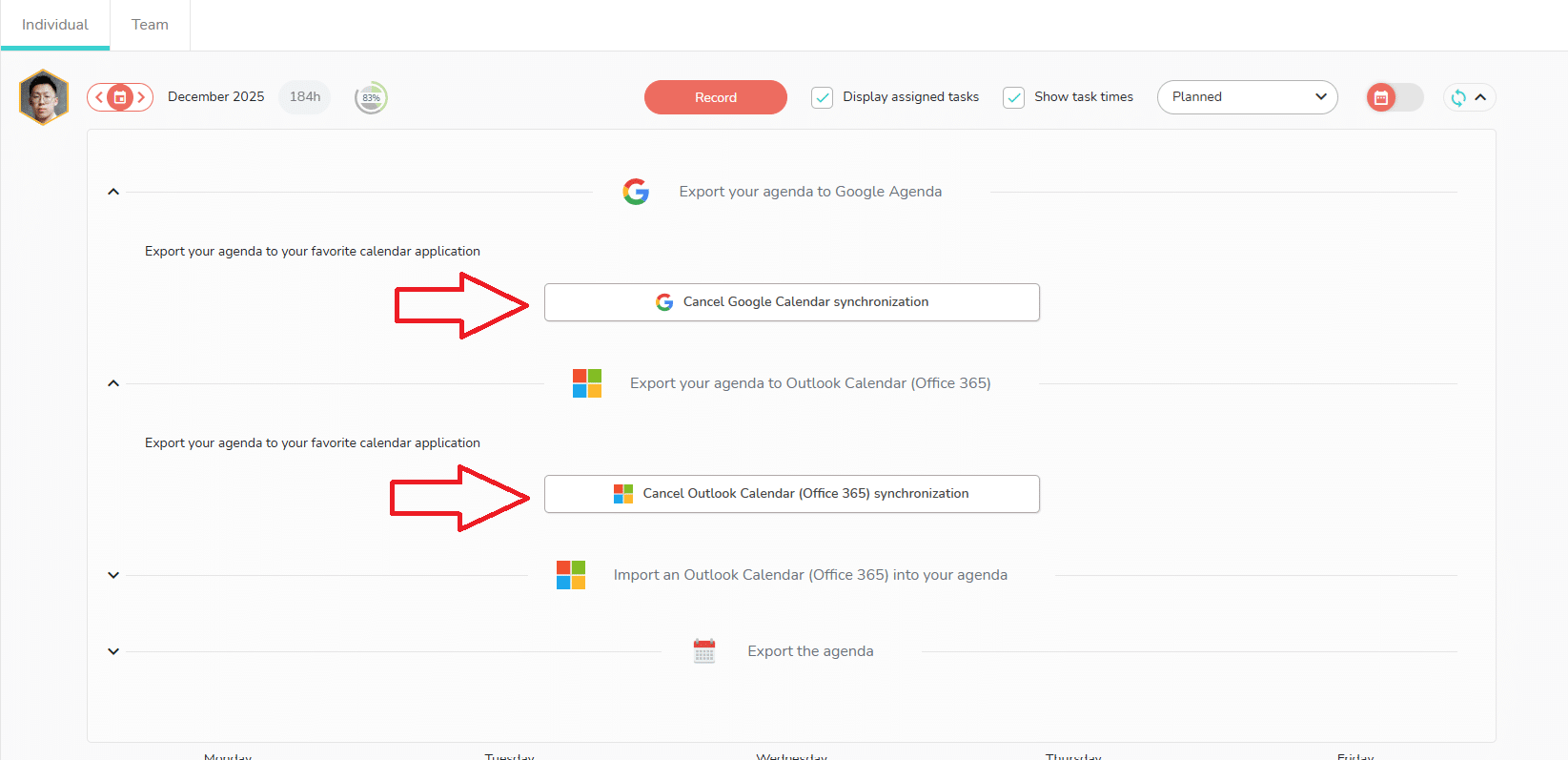
Where to select the synchronization that suits you
To synchronize your tasks, click on Agenda on the left column of your account. Then select the “Individual” tab. You will access your agenda for the current month, gathering the tasks you are assigned to.
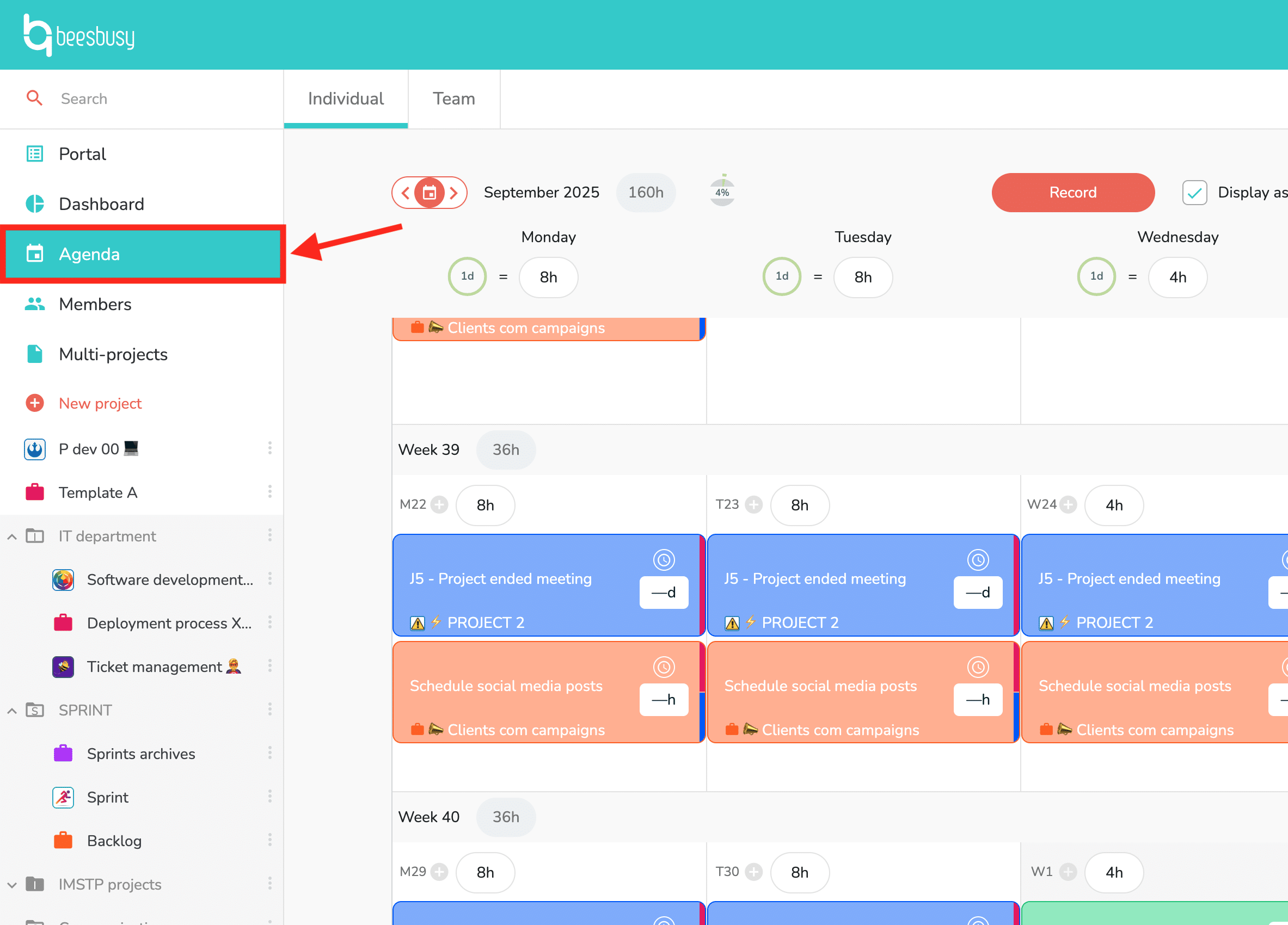
Open the synchronization panel by clicking on the synchronization symbol at the top right:
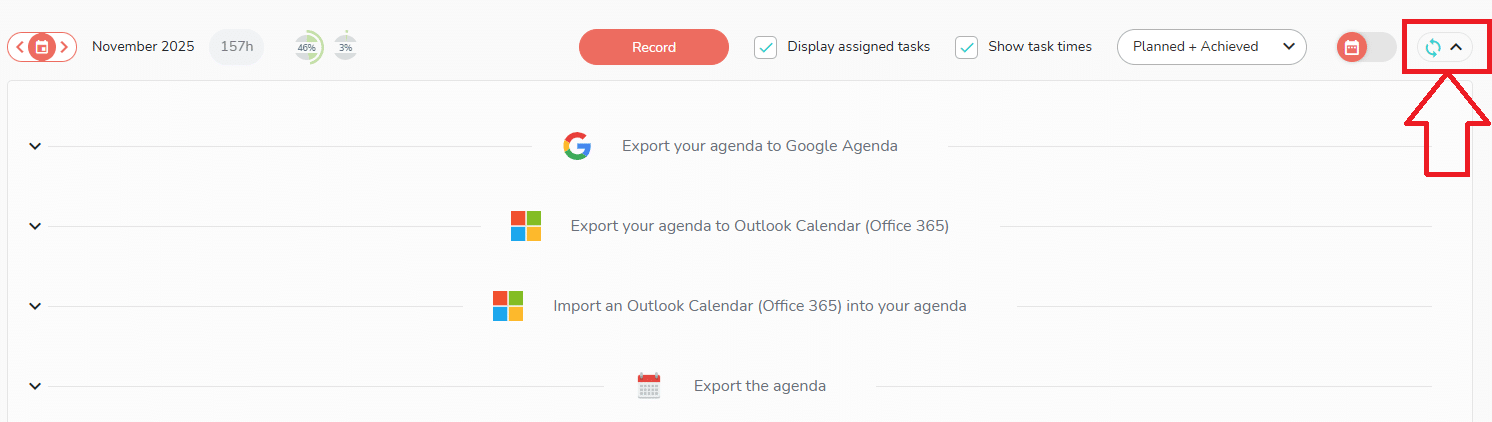
You have various synchronization options in this panel:
- Export your agenda to Google Agenda.
- Export your agenda to Outlook Calendar (Office 365). You can choose between:
- Generate two calendars in Outlook: a “Beesbusy tasks” calendar and a “Beesbusy times” calendar.
- Synchronize Beesbusy times directly in your main Outlook calendar.
- Import an Outlook Calendar (Office 365): the Outlook meetings will be imported in your Beesbusy agenda, and will impact your occupancy rate.
- Export the agenda: generation of an .ics file
First synchronisation
When this is your first synchronization, you must log in to your Google or Microsoft account. An authorization request message for Beesbusy to access to your Microsoft or Google account appears, and you must give consent.
Export your Beesbusy agenda
You can choose to export your Beesbusy agenda in your Google Agenda or in your Outlook Calendar.
You can also export your Beesbusy agenda as an .ics file.
Export your Beesbusy agenda to Google Agenda
When you choose to export your Beesbusy agenda to your Google Agenda, two new agendas appear in your Google Agenda: “Beesbusy tasks”, which displays the planned tasks assigned to you, and “Beesbusy timelogs”, which displays your planned forecast workload.
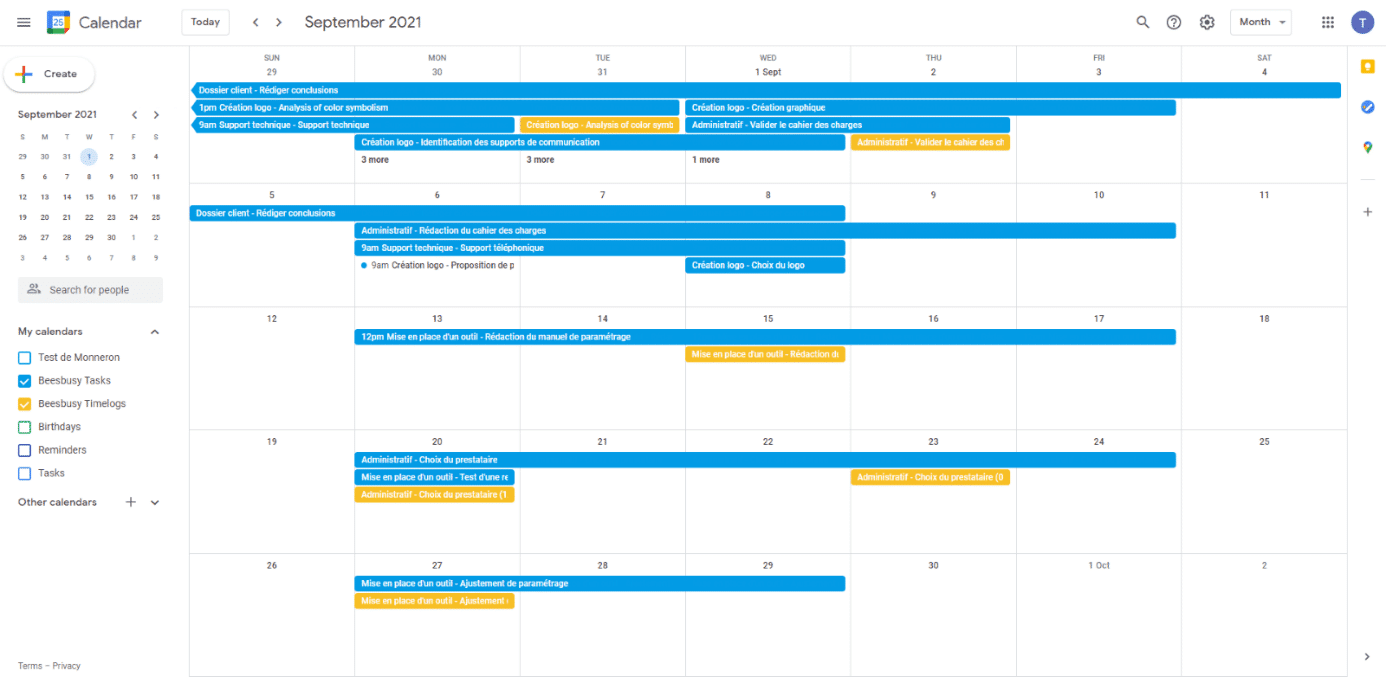
Choose the agenda you prefer to display, or both if you want.
Export your Beesbusy agenda to Outlook Calendar (Office 365)
If you want to export your Beesbusy agenda to your Outlook Calendar, you have two possibilities.
Export all Beesbusy tasks to 2 new calendars for tasks and time entries
If you choose this first option, two new calendars appear in your Outlook Calendar: “Beesbusy tasks”, which displays the planned tasks assigned to you, and “Beesbusy timelogs”, which displays your planned forecast workload.
Choose the agenda you prefer to display, or both if you want.
Export only Beesbusy tasks with planned times to the main calendar
If you choose this second option, only your tasks with planned time will by synchronized. And it doesn’t create a new calendar: your Beesbusy tasks are integrated directly in your main Outlook Calendar.
Export your Beesbusy agenda as an .ics file
You can also export your Beesbusy agenda as an .ics file, if you need to transfer your data in another calendar application.
Import an Outlook Calendar (Office 365) into your agenda
You can import the meetings of your Outlook calendars into your Beesbusy agenda.
First, you have to select which calendar has to be imported.
In Beesbusy, the meetings will be displayed in the same way as pediods not worked, as they are not linked to any project.
To know more about periods not worked, please consult the following online help article:
https://www.beesbusy.com/resources/features/agenda/how-see-my-schedule-tasks/
Please note that Beesbusy takes into account some specific features of your Outlook meetings:
- An Outlook meeting with an “Available” status do not generate an occupancy rate. Outlook meeting statuses are visible in your Beesbusy agenda.
- In Beesbusy, Outlook meeting titles are only readable by people sharing the same subscription. Therefore, all members outside your subscription see unavailability on your Beesqbusy agenda with the label “Unavailable”, without further explanation.
- The title of a “private” Outlook meeting will be visible when you view your Beesbusy Agenda. But not when one of your colleagues views your Beesbusy agenda from its Beesbusy account. For him, this appointment will be labeled “unavailable”, without further explanation.
Cancel the synchronization
You can cancel the synchronization of your Beesbusy agenda with Google Agenda or Outlook Calendar at any time by clicking on the cancel synchronization button accessible directly in the syncrhonization panel: