How to access the settings for customizing the Beesbusy interface?
Go to your profile by clicking on the user drop-down menu on the top right of the screen. In your profile, select the “Subscription parameters” tab.
You can only do it if you have an Enterprise subscription, and if you are the subscription administrator.
What can you customize?
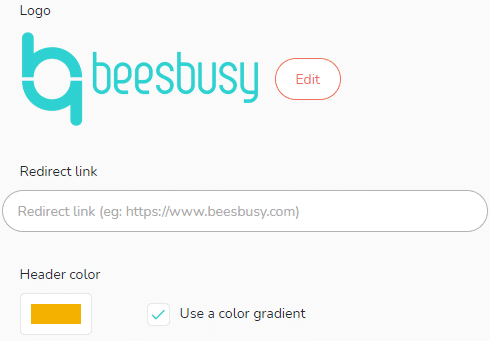
- Logo: choose a logo to replace the Beesbusy logo (in the top left corner). You can select a logo by clicking on “Upload”. You can directly drag your logo or download it into your directory by clicking on “Open”.
- Redirect link: you can add a URL to direct a click on your logo (in the top left corner) to a particular web address (your website for example).
- Header color: you can choose a theme color for the interface of the application and action messages. To select a color, click directly in the palette above the ruler or type the color reference.You can choose to display the color as gradient or solid.
The customization applies to the web and mobile application.
If you have taken out a subscription for other users, the White Label customization will apply to these users’s interface.
It will also apply to the portals (see here) and the projects shared as web pages (see here).