The individual dashboard
To access the individual dashboard, click on “Dashboard” on the left column.
By default, you land on the individual dashboard.
In the individual dashboard, you have access to indicators which gather your tasks by various criteria. The tasks displayed there are only tasks that has been assigned to you.
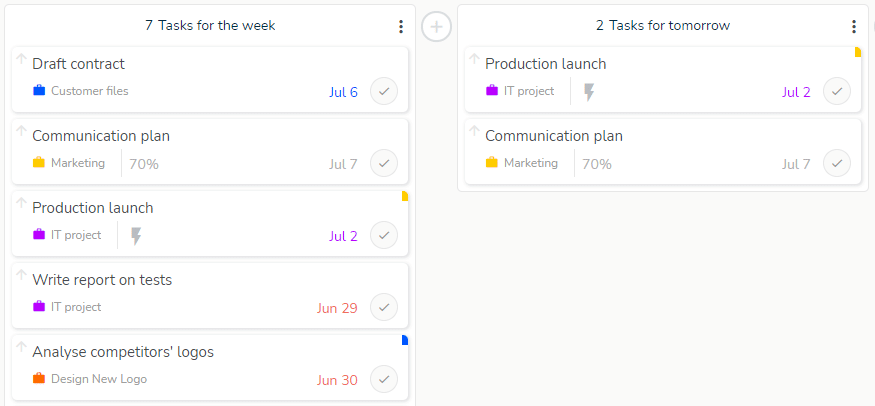
Click on a task to display the task’s details panel.
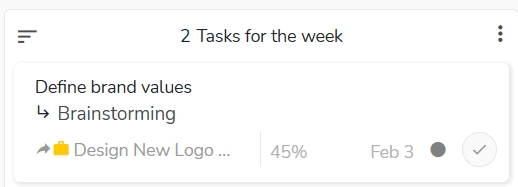
Subtasks are also readable in the individual dashboard, with the name of their parent task. Below for example the subtask “Brainstorming” which belongs to the task “Define brand values”:
This dashboard is accessible on the web version and the Beesbusy mobile application.
Individual dashboard indicators
- Actions completed last week: actions marked as completed last week.
- Actions completed today: actions marked as completed today.
- Actions completed yesterday: actions marked as completed yesterday.
- Actions for this week: actions assigned to you in tasks whose start or end date is included in the current week.
- Actions for today: actions assigned to you in tasks whose start or end date is today.
- Actions to do: any action assigned to you that is not marked as done.
- Assigned tasks: tasks assigned to you.
- Completed tasks: tasks assigned to you that has been marked as completed.
- Overdue tasks: tasks whose start date/time is before the present time.
- Priority tasks: tasks marked as a priority.
- Tasks completed last week: tasks that were marked as completed last week.
- Tasks completed today: tasks that were marked as completed today.
- Tasks completed yesterday: tasks that were marked as completed yesterday.
- Tasks for the next 7 days: tasks whose start or end date is included in the next 7 days (today not included).
- Tasks for the week: tasks whose start or end date is included in the current week (Monday to Sunday).
- Tasks for today: tasks whose start or end date is today.
- tasks for tomorrow: tasks whose start or end date is tomorrow.
- Tasks to be completed: tasks whose start date/time is before now and whose end date/time is after now.
- Unassigned tasks: tasks to which no user is assigned, in the projects you created.
- Uncompleted tasks: tasks that are not marked as completed.
- Unscheduled tasks: tasks with no start or end date.
The indicators are designed to limit overlaps (tasks appearing in several lists).
Good to know: if a task is completed, the actions to do in the task will no longer appear in your dashboard, even if they are not marked as completed. Beesbusy considers that if you have marked your task as completed, it means that the actions are done.
Organize your individual dashboard
- You can add an indicator by clicking on the icon + . Choose the type of indicator to create it.
- To delete an indicator, click on the 3 small dots to the right of its name.
- You can change the order of your indicators. To do this, use drag and drop.
These modifications can only be made on the web version of Beesbusy.
From the individual dashboard, you can access the statistics by using the toggle button located at the top of the page.
To know more about the statistics, please consult the following article: https://www.beesbusy.com/resources/features/dashboard/individual-dashboard-statistics/