The Team Agenda
You can access the team agenda by clicking on “Agenda”, then on the “Team” tab:
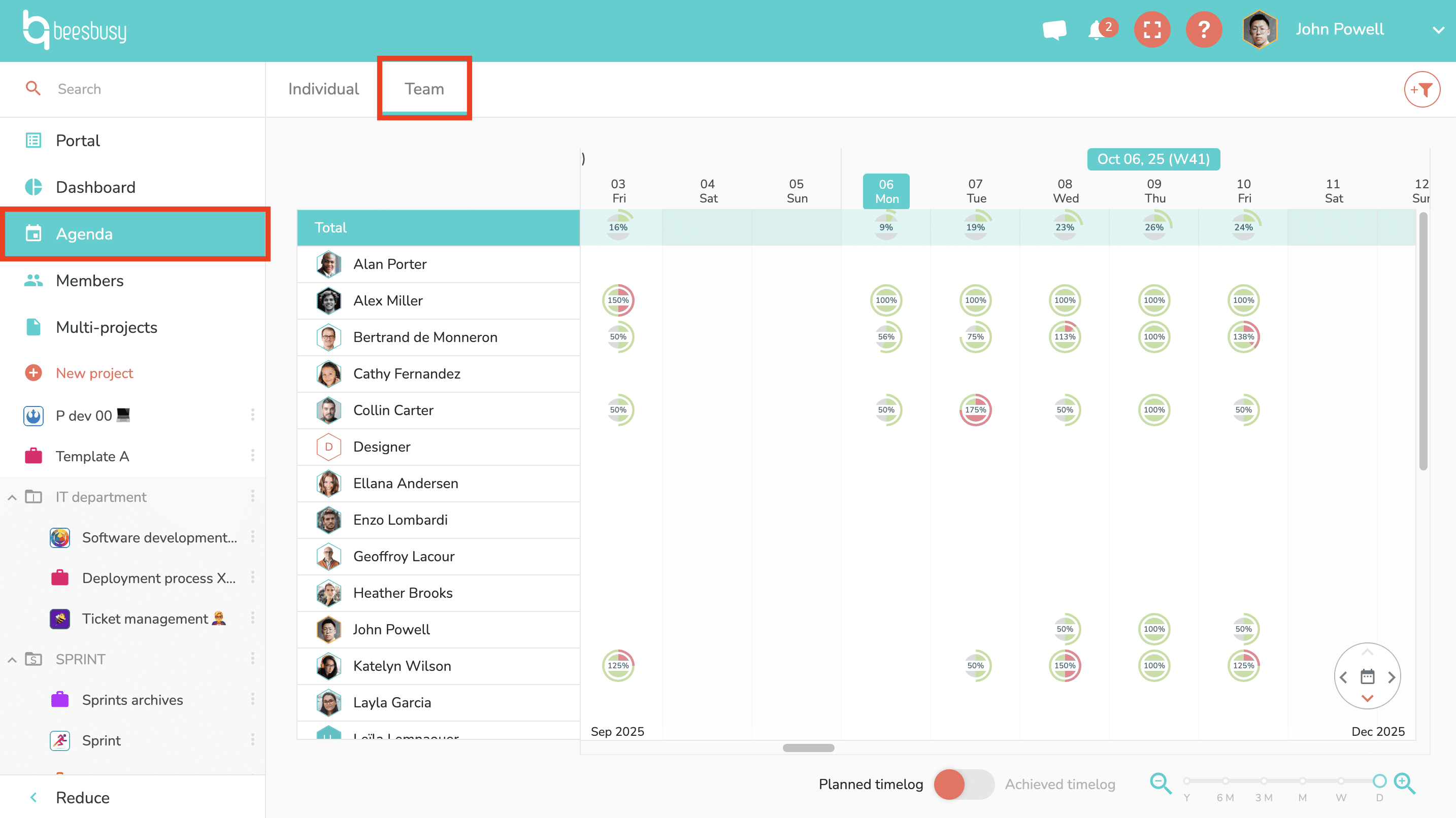
The team agenda is a view that gives you quick access to the workload of all your members, including their occupancy rates.
This is a read-only view, with a shortcut to the member’s agendas to modify the schedule if necessary.
Choose the data displayed according to your needs
A line at the top shows the total occupancy of the members in the view. Therefore, if you filter on a group of members, you see the occupancy of each member in their row, as well as the total occupancy of the selected group:
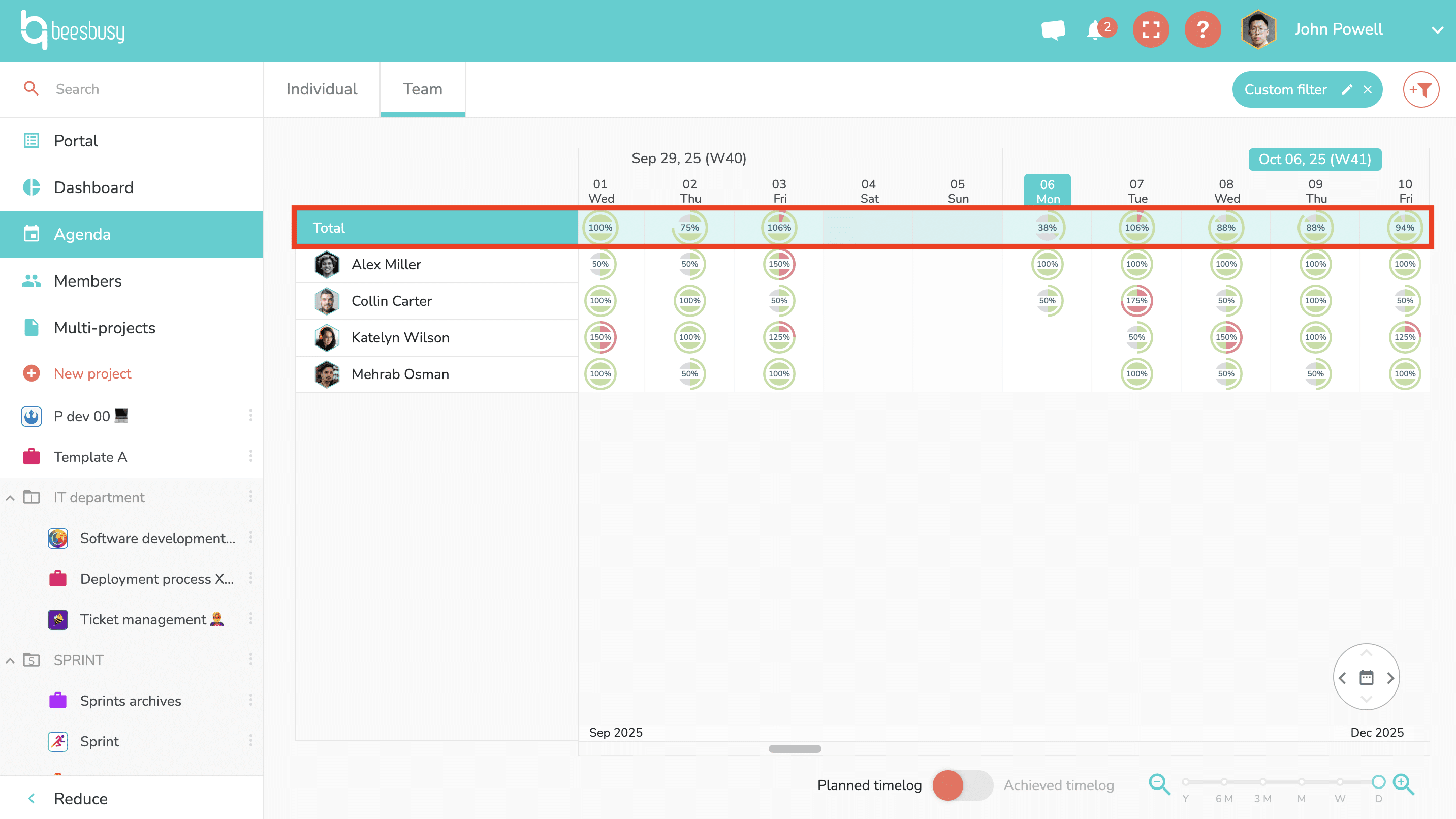
In the Team Agenda, you can filter by member or by smart-tag, and you can also filter by the special fields of the members in the advanced filter.
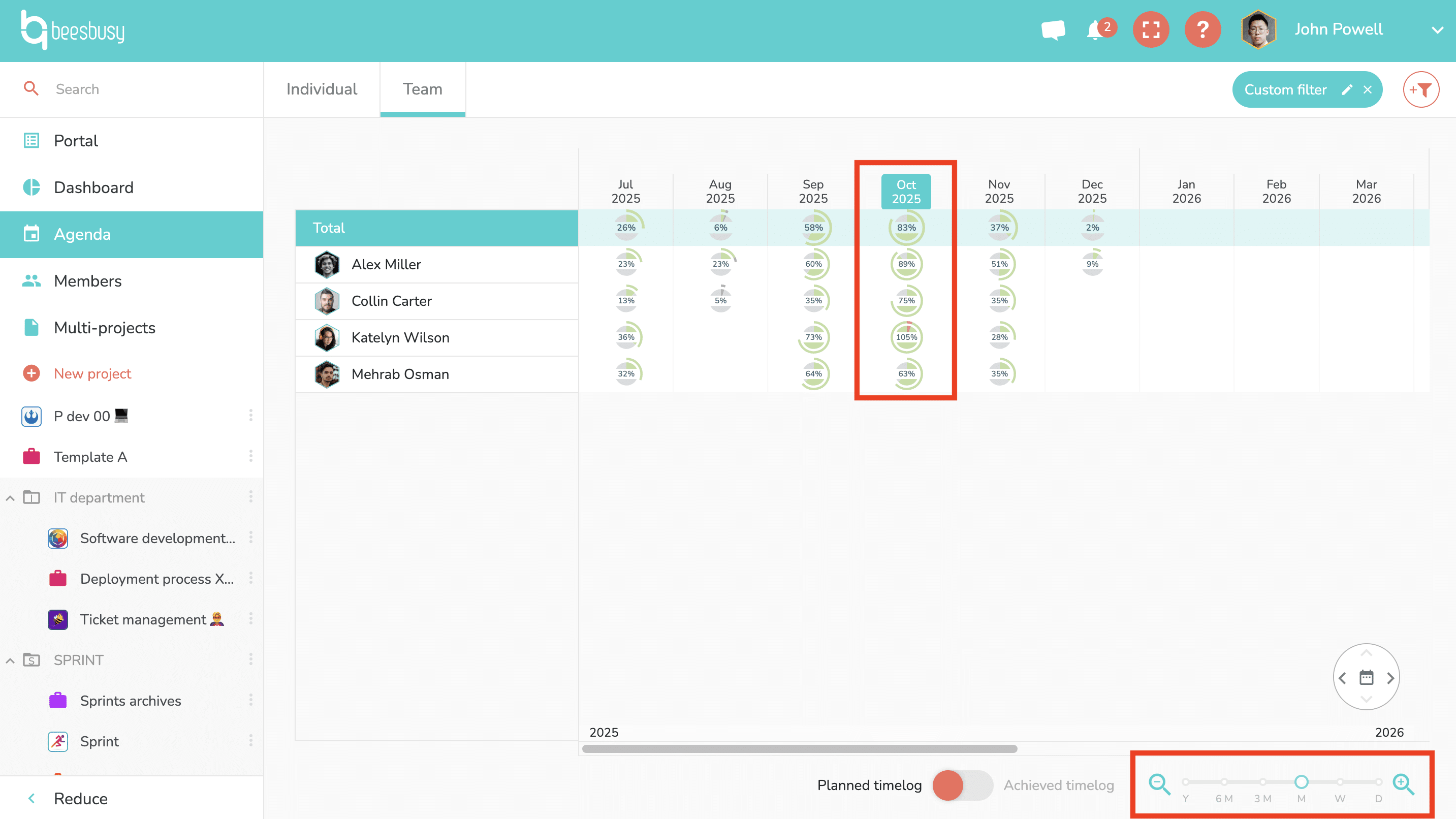
At the bottom right, a zoom level allows you to display occupancy rates at the level you prefer: from daily to annual occupancy rates, including weekly, monthly, quarterly, and semi-annual periods:
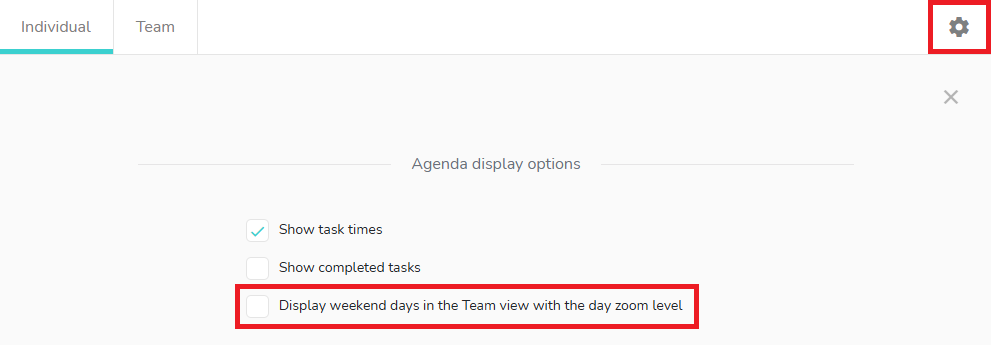
You your zoom is on the dayly level, you can choose to hide or display the weekends, thank to the display options of the agenda:
Switch from an overview to activity details
To see the details of a member’s activities, click on the occupancy rate you’re interested in: a tooltip appears, displaying the details of the member’s tasks:
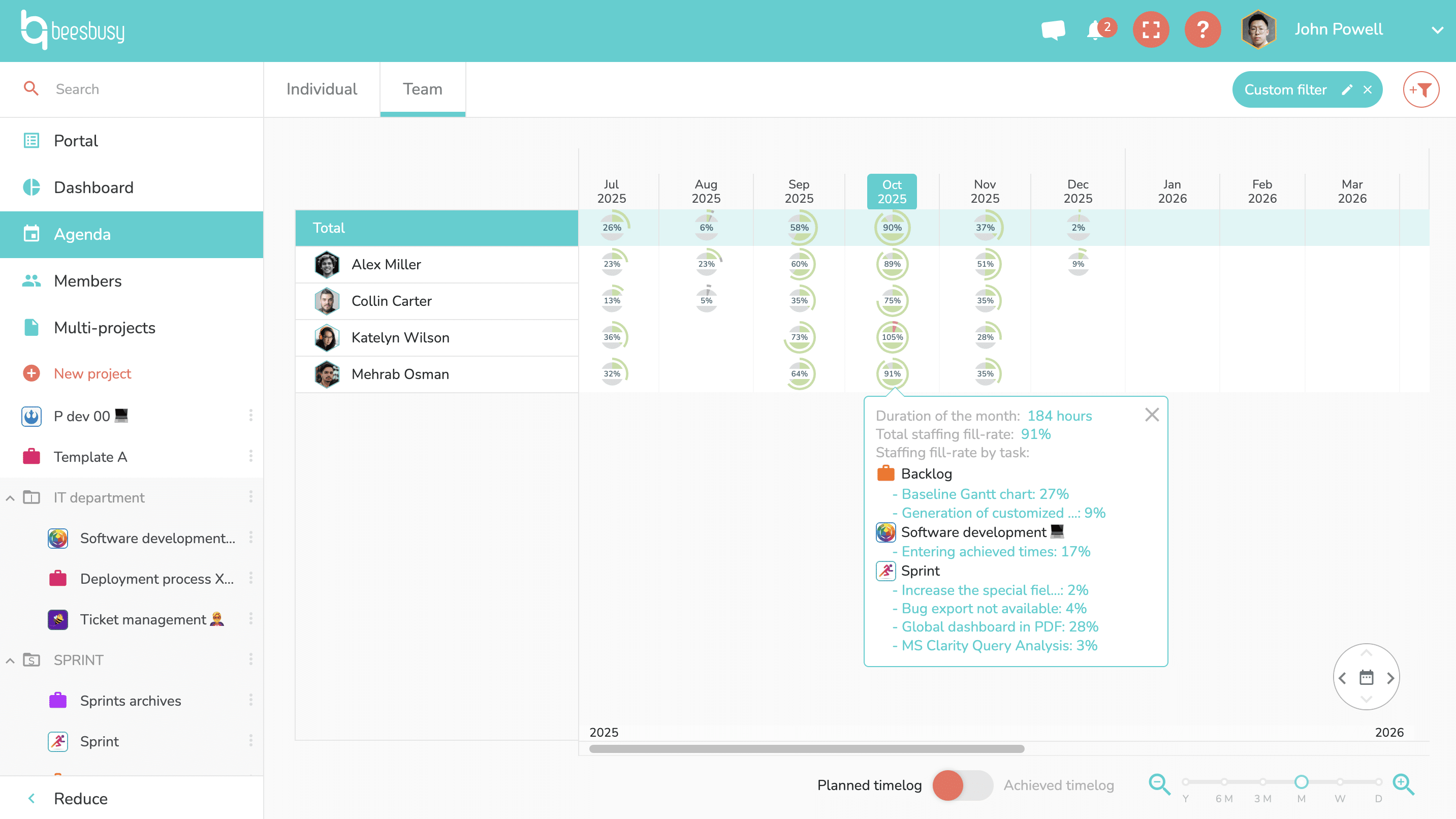
If there are many tasks, you can scroll through this tooltip.
Finally, when you hover over a member, an eey appears, giving you direct access to the member’s agenda:
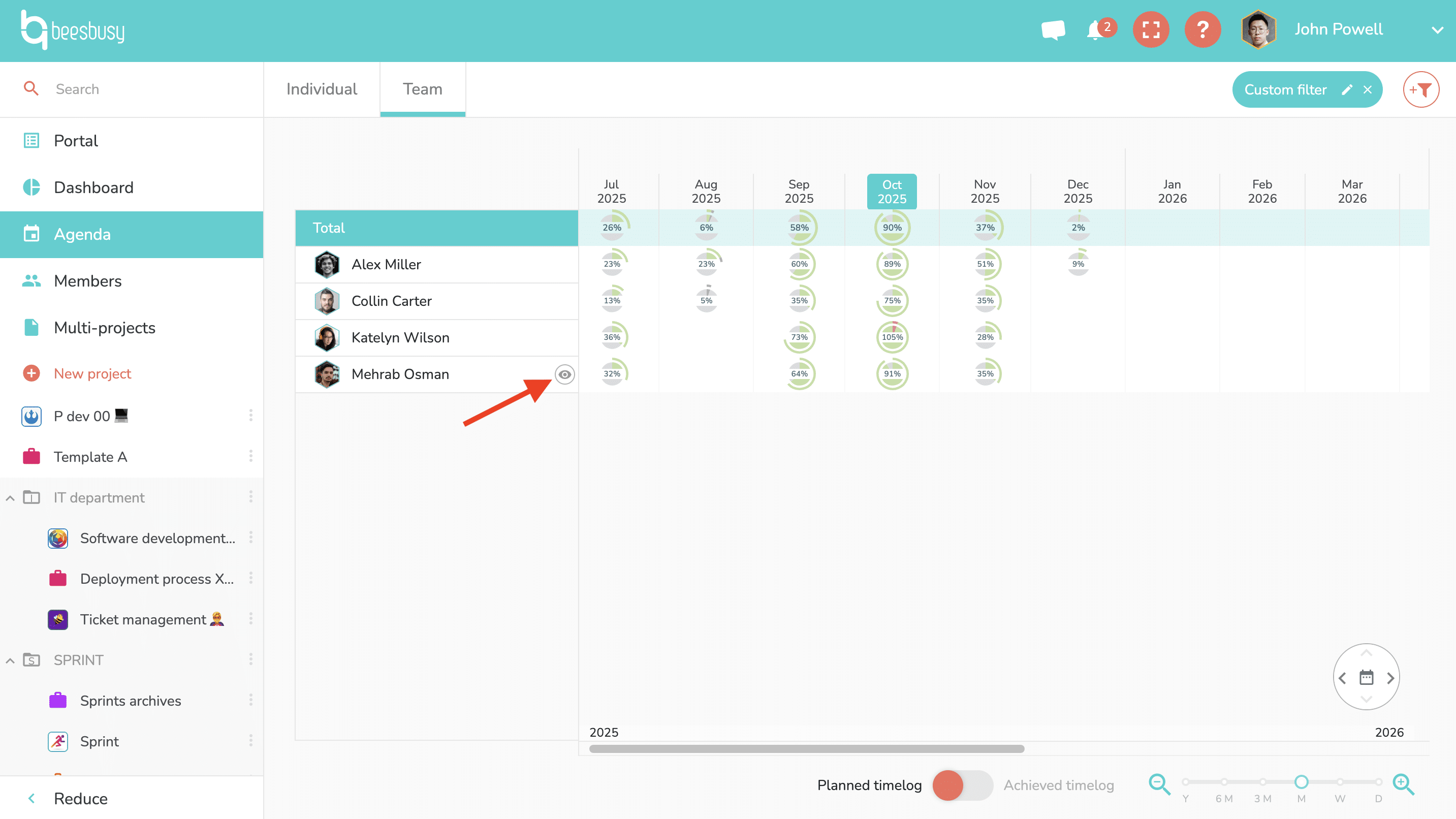
This allows you to have a more detailed view and make changes if necessary.
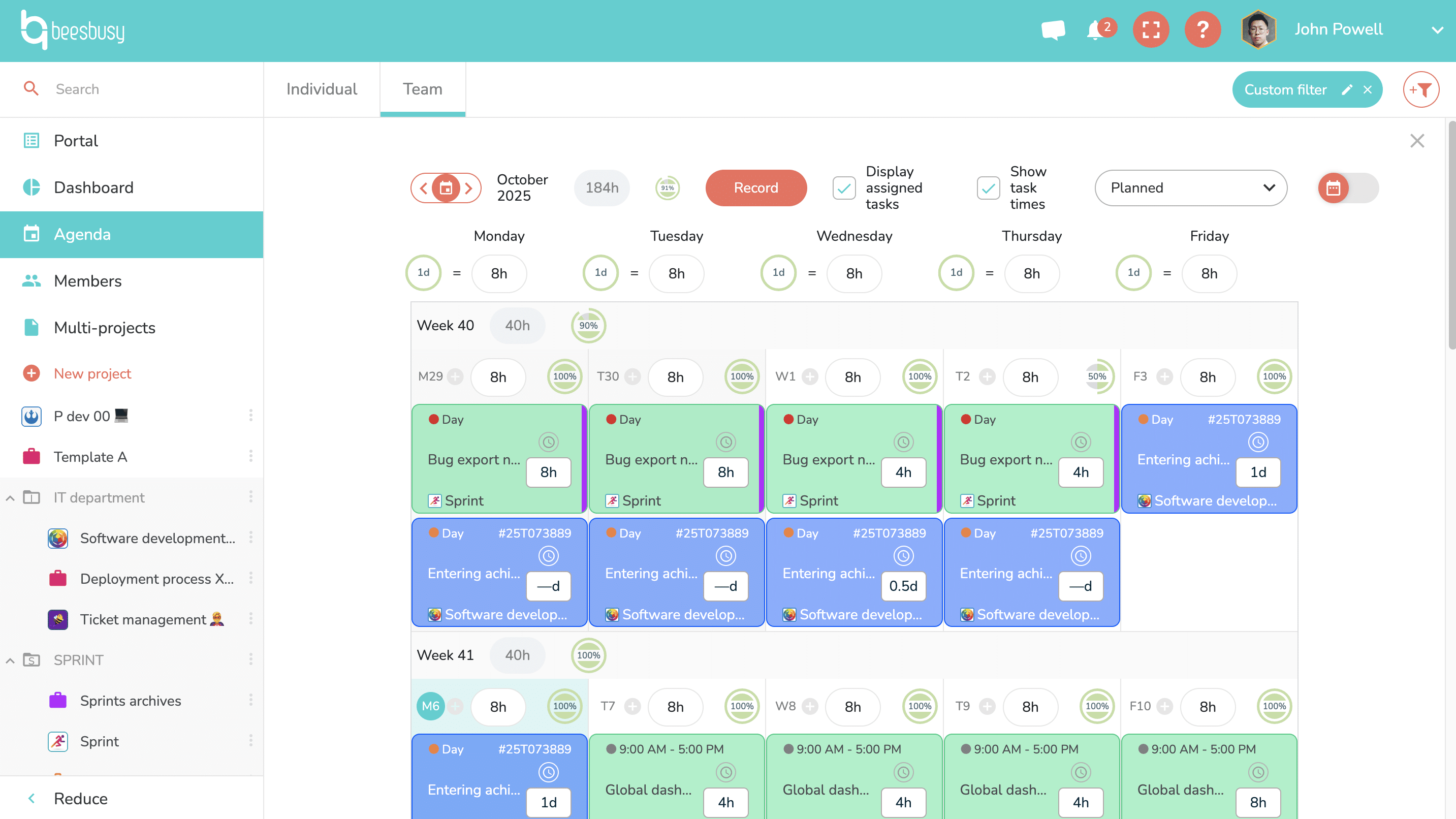
Click the cross in the top right corner to close a particular member’s calendar and return to the team agenda.