- Time tracking report for a project.
- Export by task list and by task from the When view.
- Export by member from the Who view.
- Time tracking report for several projects.
- Export by project, task list and task from the Multi-projects Gantt view.
- Export by member from the Multi-project Calendars view.
- Display of time in planning views.
- Project progress management with the Global dashboard.
- Creating your own reports.
Information on time management
Time tracking report for a project
The time tracking export on a project can be displayed from the When view and from the Who view.
- From the When view, you get a display focused on time tracking report by task list and by task.
- From the Who view, you get a display focused on time tracking report by member.

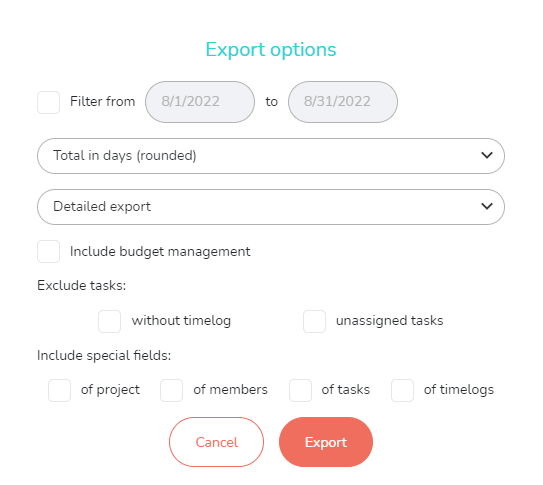
You have several options:
- Export time data over a selected range, to analyze only the selected period and not the entire project.
- Display the data in the export in days (rounded to the nearest whole number), or in hours, or in days and hours.
- Choose an export format:
- Detailed export: find all the data in the same format as in Beesbusy, with sections grouping the times by list, member… The file is in .xls format.
- Raw Excel export: find all your data one after the other, without totals or groupings. The file is in .xls format.
- CSV raw export: find all your data one after the other, without totals or groupings. The file is in .csv format.
- Exclude tasks without time.
- Exclude unassigned tasks.
- Display the special fields.
Warning: whatever view you choose, the export takes into account the active filters (member, smart-tag, status and label).
Time tracking export from the When view
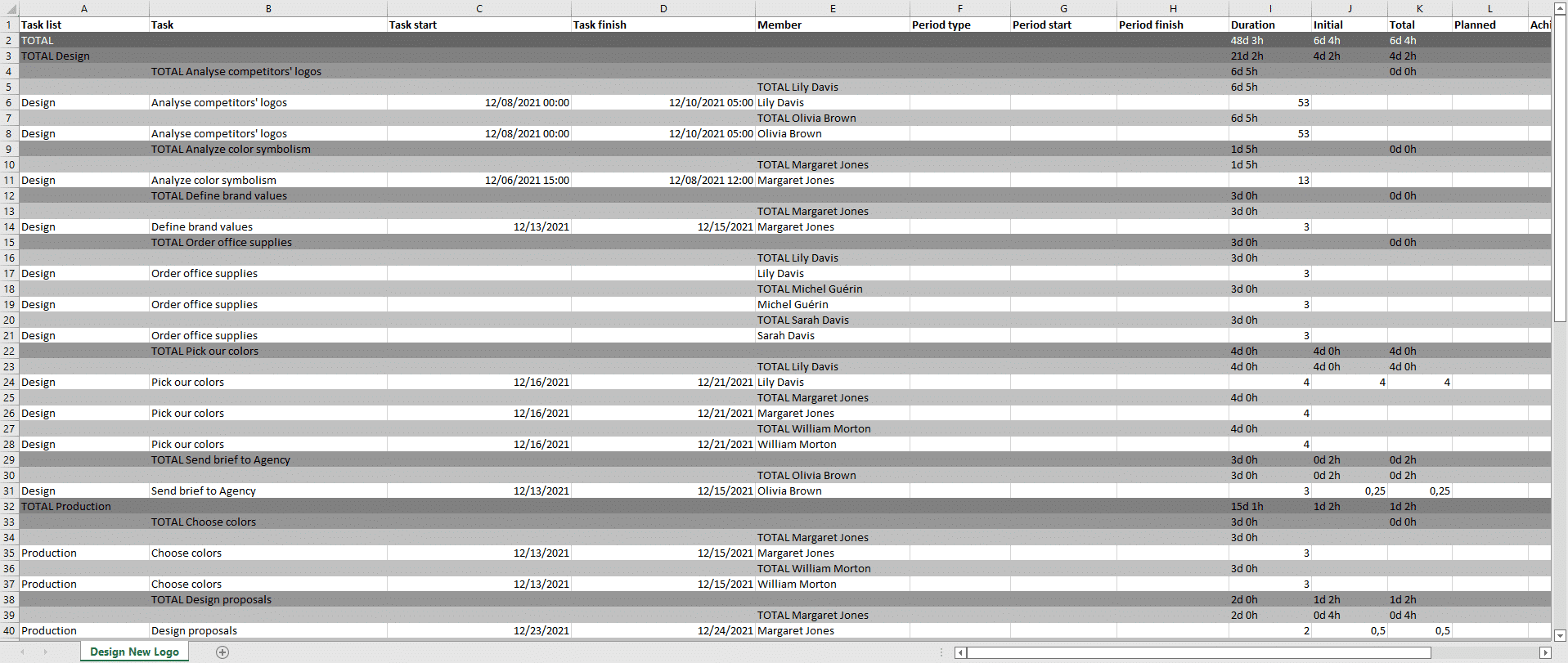
Meaning of the values:
- Task start/finish: start and end dates of the task, defined in its When tab (= task duration).
- Period type: indicates whether the period is in days or in hours.
- Period start/finish : dates between which work has been scheduled for the concerned member.
- Initial time: expected time to complete the task .
- Planned time: time that has been planned over a specific period (day, week, month).
- Achieved time: time spent on the task.
- Remaining time: remaining time needed to complete the task.
- Unit: indicates the time unit in which the workload is assigned (days or hours).
Time tracking report in the Who view
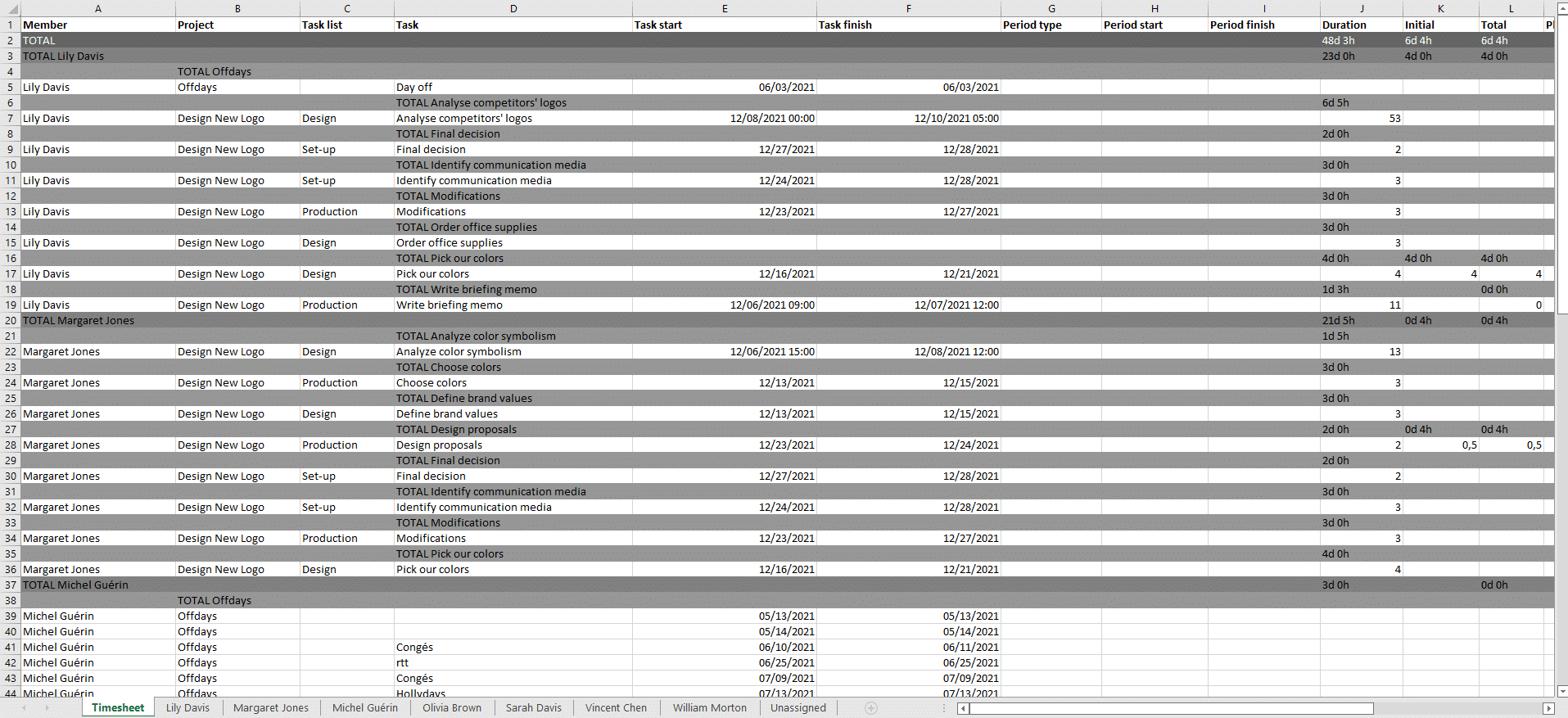
The Excel workbook has a general summary tab, as well as a tab by person.
Good to know: the exports of the time summaries from the Who and Calendars views include the unavailabilities entered by the members in their agenda. See the article on time entry in the calendar: https://www.beesbusy.com/resources/features/agenda/how-see-my-schedule-tasks/
Meaning of the values:
- Task start/finish: start and end dates of the task, defined in its When tab (= task duration).
- Period type: indicates whether the period is in days or in hours.
- Period start/finish : dates between which work has been scheduled for the concerned member.
- Initial time: expected time to complete the task .
- Planned time: time that has been planned over a specific period (day, week, month).
- Achieved time: time spent on the task .
- Remaining time: remaining time needed to complete the task.
- Unit: indicates the time unit in which the workload is assigned (days or hours).
Time tracking report for several projects
The time tracking report for several projects can be done from the Gantt and Calendars multi-projects views.
- From the Gantt view, you get a report focused on time by project, task list and task.
- From the Calendars view, you get a report focused on time by member and by project.

Except for the fact that the extracted data concern several projects at the same time, the exports are built in the same way as in single project.
Display of time in planning views
In the planning views of a project (When and Who) and in the multi-projects views (Schedule, Gantt, and Calendars), hatching lines show when the logged times exceed the duration of a task.

Use time tracking for overall project management
Creating your own reports
In the dashboard, you can customize your own reports to track times, thanks to the reporting feature. To know more about it, click on the following link: https://www.beesbusy.com/resources/features/dashboard/reporting/