Rename a task
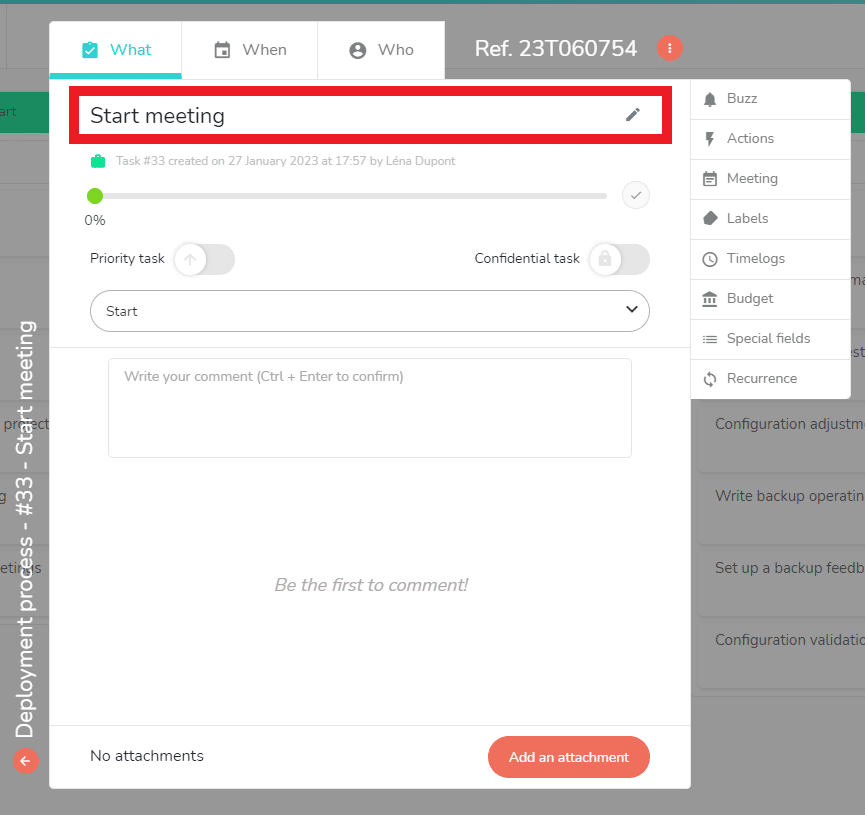
To rename a task, click on it: the task detail panel will appear. On the What tab, click on the name of the task, enter the new name, then press the “Enter” key on your keyboard to confirm.
Duplicate, delete or move a task
To duplicate, delete or move a task:
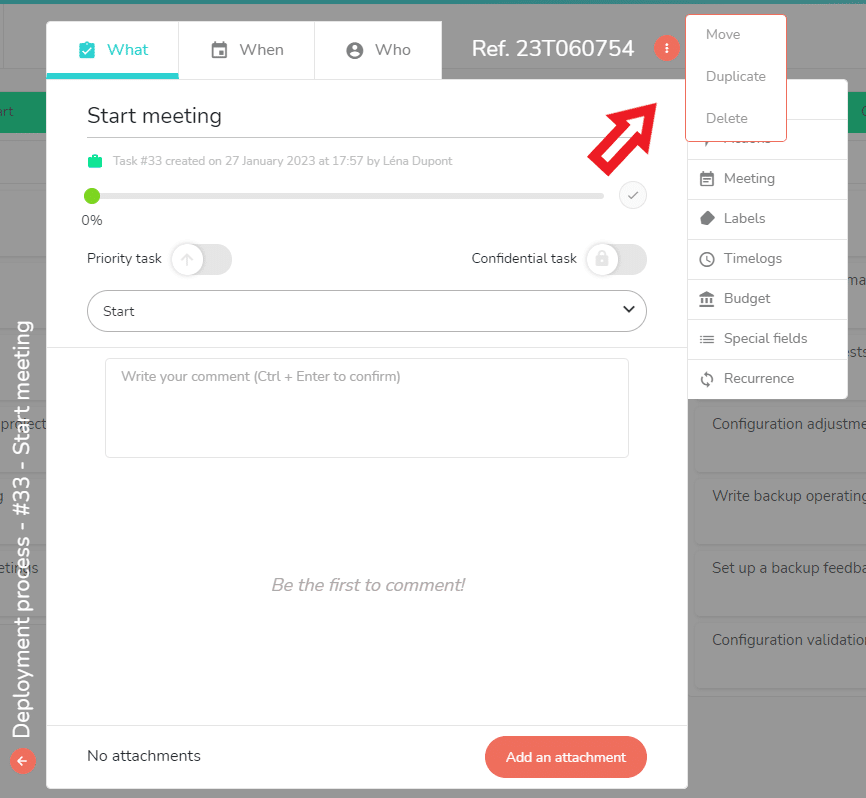
- If the task is open, click on the menu in the top right-hand corner:
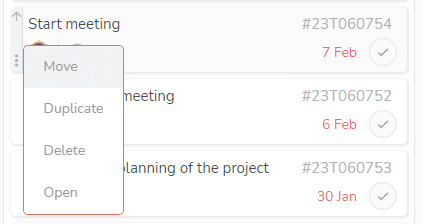
- If the task is not open and if you are in the What view of the project, leave your mouse cursor over the task.
A box with 3 small dots appears on the left:

By clicking on the 3 small dots, a drop-down menu opens with the following actions:
- Move: This button is used to move the task to another project by selecting the task list.
- Duplicate: the copy will be added automatically to the same task list as the original, with the same name followed by a number. You will then be able to change its name and move your task to the list you want. The duplicated task’s functionality remains the same as the other tasks and the two tasks are now completely independent.
- Delete: confirm to confirm the deletion or cancel if necessary. Please note: all deletions are final.
- Open: click on it to open the task.
Recovering a deleted task
Deleted tasks are archived for 30 days before being permanently deleted.
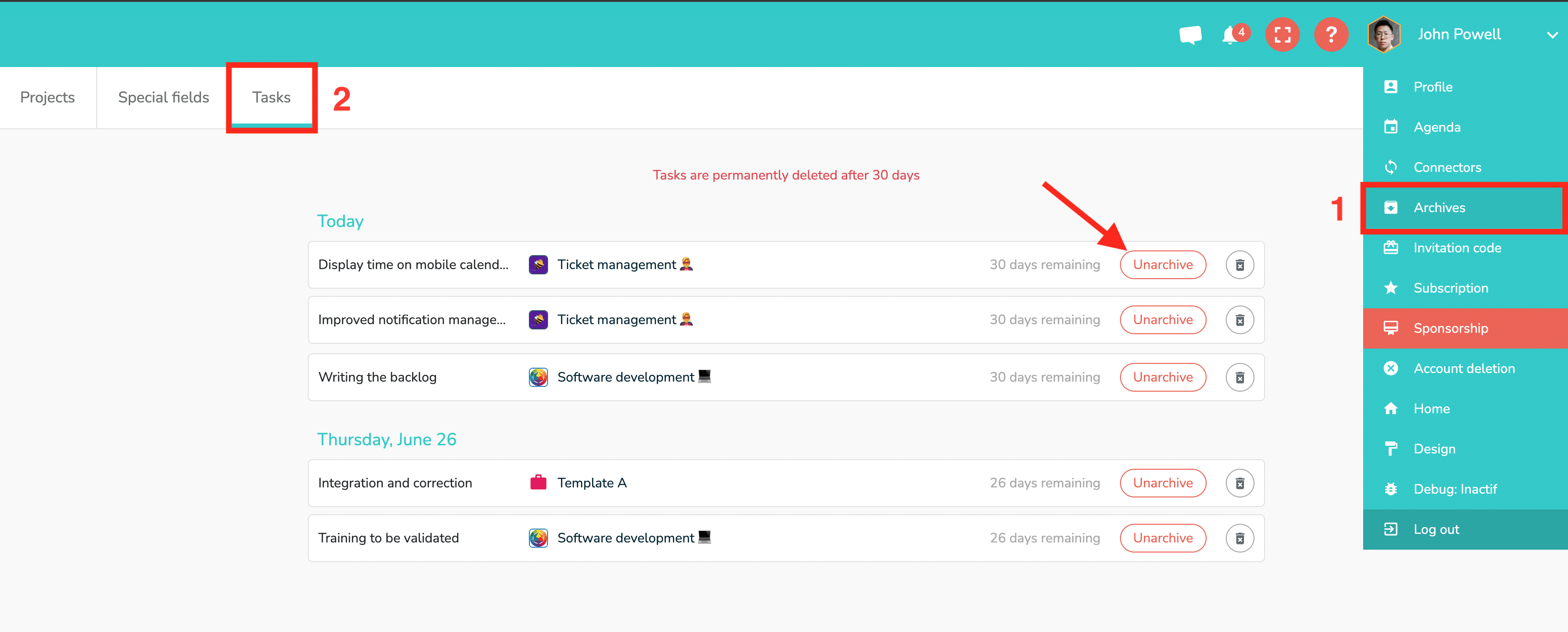
During this 30-day period, you can go to your account’s Archives to unarchive them and restore them to your project: