You have several options to schedule a task.
Planning in the When view
Directly schedule the task on the schedule of the When view of the project by clicking in front of the corresponding task on the schedule.
You can extend or shorten the duration of the task by clicking on its ends and reducing or expanding the task.
You can also easily reschedule a task by dragging and dropping.
To add planning details, simply click on the task.
To know more about the When view: https://www.beesbusy.com/resources/features/project/when-view-project/
Planning in the What view
Open the task and click on the When tab : you can enter a start date and/or end date or duration . You can also select dates directly from the displayed calendar. The duration is calculated automatically if the dates are filled in.
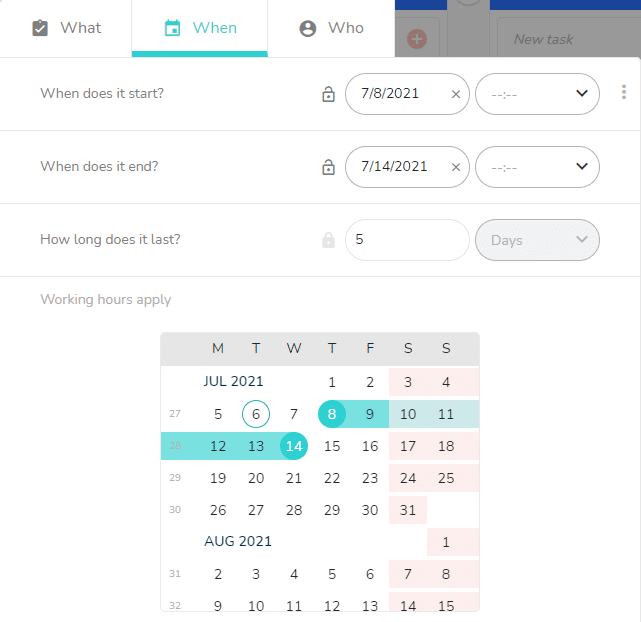
The duration is displayed in days if you did not enter any start and end times and it will shift to hours if you enter a time for the start and end date.
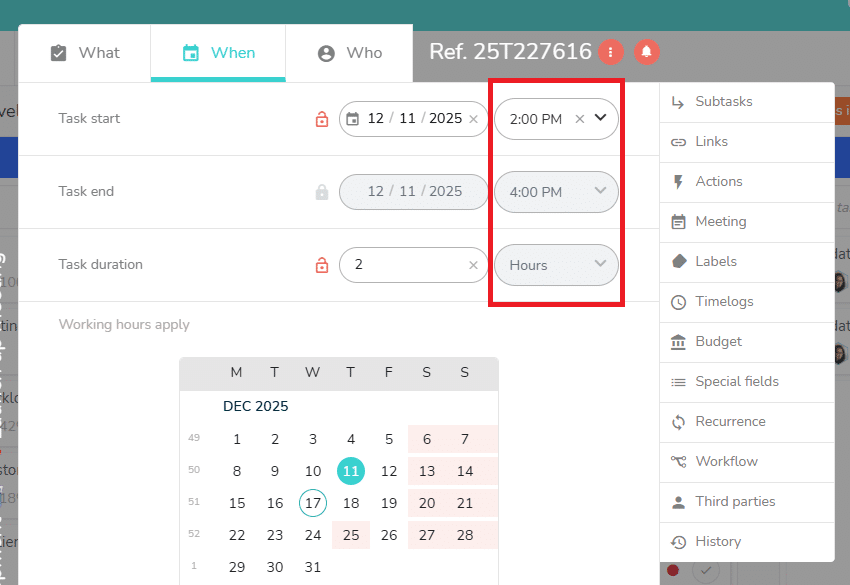
You can also enter a duration without selecting a date.
Optimizing task planning in the « Who » view
You have the option to re-schedule a task in the « Who » view to optimize the members’ schedules.
To do this, increase or decrease the duration of the task on the member’s line. This change will automatically be effective for the other members assigned to this task.
You can also easily reschedule a task by dragging and dropping.
Other planning options
These options allow you to refine the planning of your tasks in your project.
- Create links and milestones: https://www.beesbusy.com/resources/features/tasks/links-milestones-manage-dependencies-tasks/
- Default configuration options for a new task: https://www.beesbusy.com/resources/features/project/default-configuration-options-for-a-new-task/