How to create a task in a project
You have 2 options to create a task in a Project:
- In the What view: The “New task” field is accessible directly under the name of each task list. Enter the name of your task and click on the “+” button on the right side of the field or hit the “Enter” key on your keyboard.
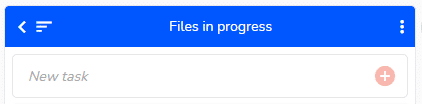 The tasks are automatically sorted in the list according to their creation date (from the most recent to the oldest). You have the possibility to sort the tasks by moving them manually in the list using drag and drop, or by using the sorting feature located on the left side of the task list’s name.
- In the When view: The “New task” field is available at the bottom of the page. Enter the name of your task and click on the “+” button on the right side of the field or hit the “Enter” key on your keyboard. By default, the task will be added to the first task list of your project. In the When view, the task will be sorted according to the display order already selected. You can then schedule the task directly on the schedule or click on the task to add more details.
To manage the default settings for a new task, see the dedicated article: https://www.beesbusy.com/resources/features/project/default-configuration-options-for-a-new-task/
To rename, duplicate, or delete a task, see the dedicated article: https://www.beesbusy.com/resources/features/tasks/rename-duplicate-delete-recover-task/
How to create a task from other views of Beesbusy
You can also create tasks from:
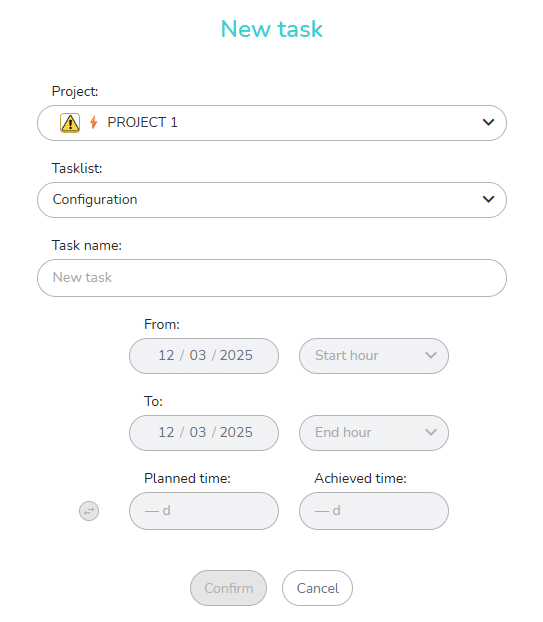
- The multi-projects Schedule and Gantt views : click on the button “Create a new task” at the bottom of the view. A window pops up, allowing you to create a task, choosing the project and task list of destination.
- The List: click on the button “New task” at the top left of the view. A window pops up, allowing you to create a task, choosing the project and task list of destination.
- The Agenda: click on the “Record” button at the top of the agenda. A window pops up, allowing you to create a task, choosing the project and task list of destination. You can also click on the “+” button displayed on the right of each day’s number. Choose “New task” and the same window will pops up: