Create an Outlook meeting from a Beesbusy task
Warning: this feature only works if you have connected Beesbusy with your Office 365 account. For more information, see the article dedicated to setting up the connection with Office 365: https://www.beesbusy.com/resources/features/connectors-synchronizations/connect-account-office-365-google-calendar/
To create a meeting, click to the right of the task on the “Meeting” icon:
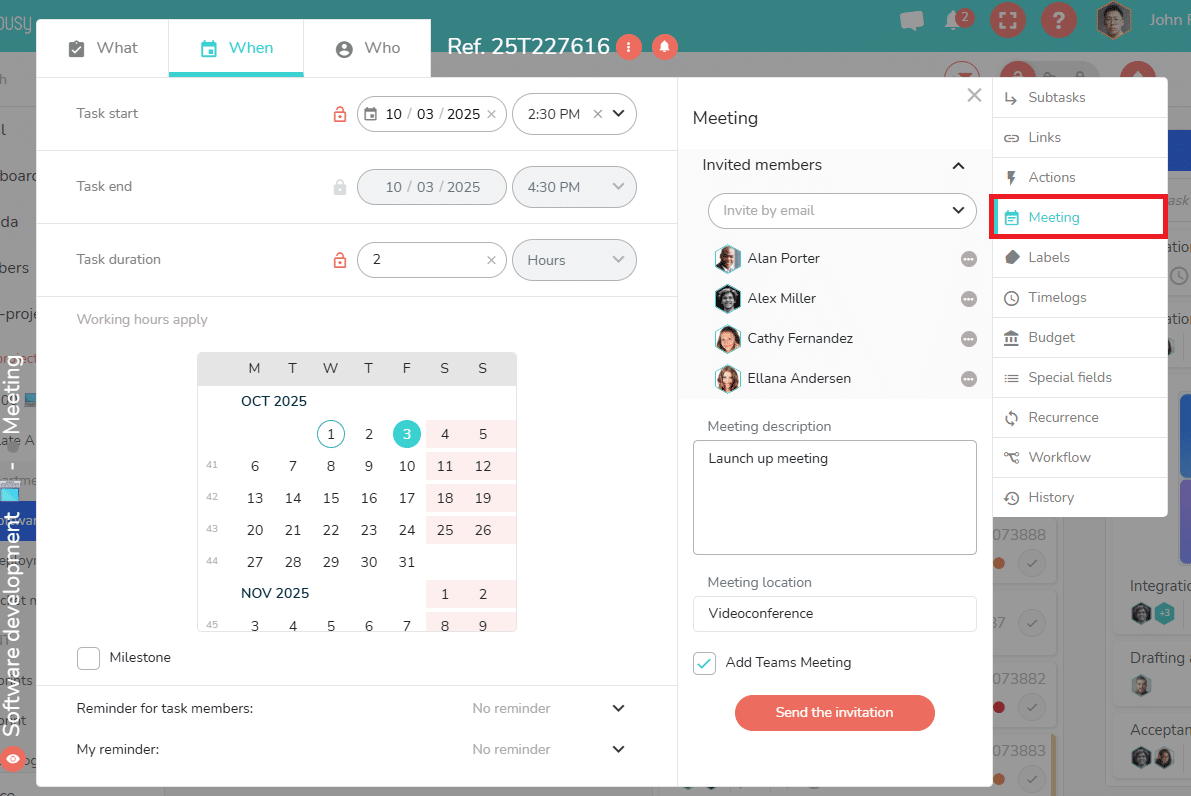
You can create a meeting from a task only if that task is scheduled.
Configure the meeting
You then have the option of inviting members to this meeting even if they are not assigned to the task. Thanks to the drop down menu, you can choose members in your member list. You can also invite anybody just by marking their email in the dedicated field.
You can add a description to this meeting and the location where it will take place. The date and time of the meeting are defined according to the task planning (start and end dates and time).
Please note that it is not possible to schedule the meeting at a time different from that of the task. The task and the meeting are one.
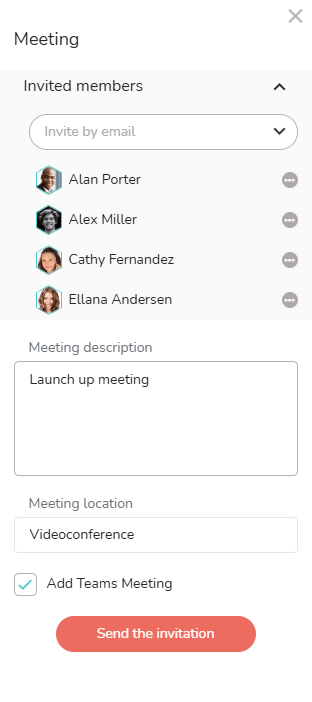
If you want the meeting to be a Teams videoconference, simply check the box “Add Teams Meeting.”
Click on “Send the invitation” to validate the meeting. An email will automatically be sent to invited members with a request for confirmation.
Members’ responses
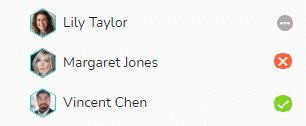
Based on members’ response to this invitation, the meeting will be scheduled in their email calendar. In addition, you can view each person’s response using the icon next to their name in the meeting (pending, accepted, refused).
Edit meeting
If you wish to modify elements of the meeting, make your modifications then click on “Send an update”. Guests will receive the update.
If you want to cancel the meeting, click on “Cancel the meeting”.