Add an attachment
You can add one or more attachments to a task (document, photo, PDF, etc.). Click on the task to access its details panel.
In the What tab of the task, click on the “Add an attachment” button and select your document:
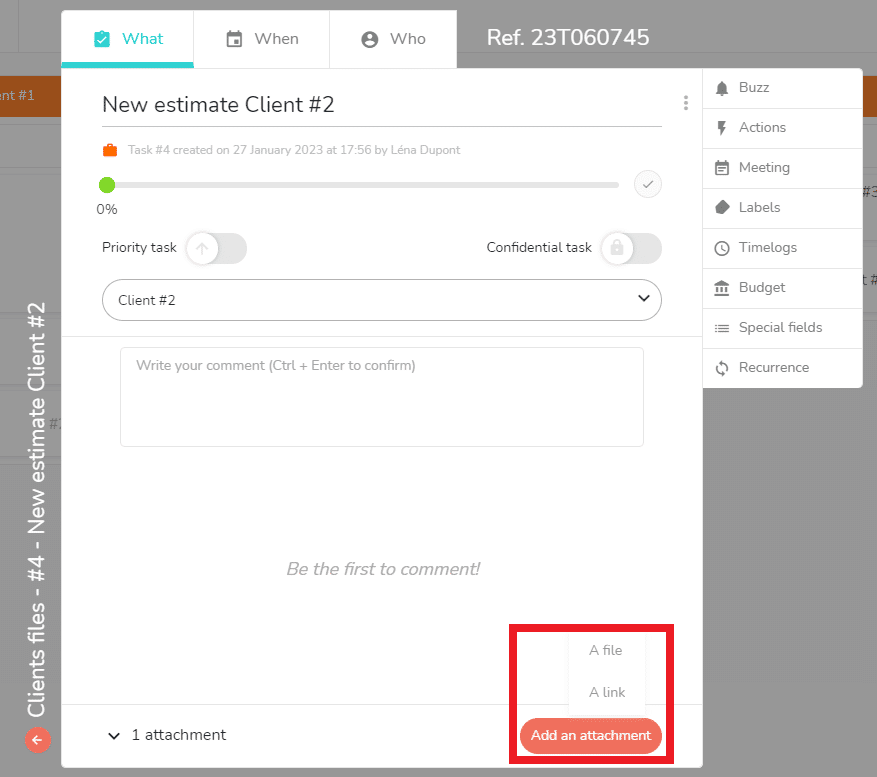
You can add :
- A file.
- A link.
Add a file
To add a file, simply click on “A file” and a window will appear to select the file that is saved on your computer.
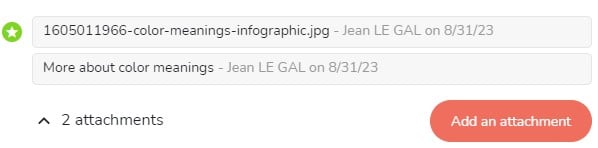
Once selected, the attachment will appear at the bottom of the task details panel:

You can select several files at once.
To do so, simply select the desired files and confirm your selection by pressing “Open”.
You can also drag and drop a file directly at the bottom of the task, it the attachments area.
And you can drag and drop, or copy and paste, an image directly inside a comment. By doing so, the image will also be added as an attachment at the bottom of the task.
Add a link
To add a link, click on “Add a link”. This window will appear:
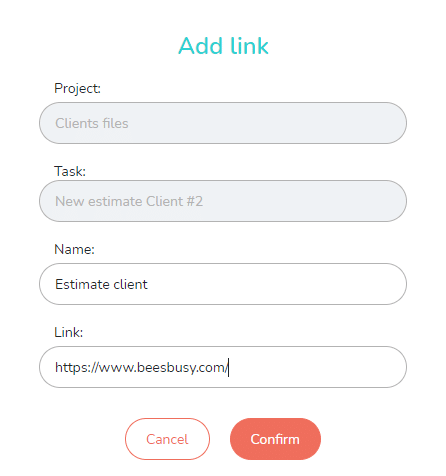
Fill in the “Name” and “Link” fields, then click OK.
As with adding a file, the link will be displayed at the bottom of the task details panel:

In the What view, when a task contains an attachment, a paperclip icon is displayed :
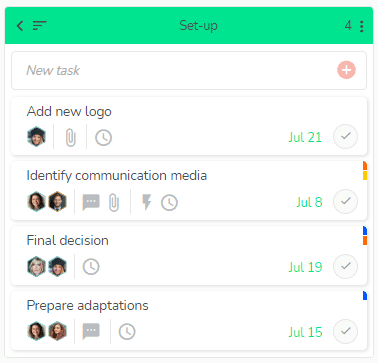
An attachment cannot exceed 200 MB, but you can add as many attachments as you like.
Adding attachments is reserved for users with a subscription. However, users with a free account can download attachments.
Previewing an attachment
Click on the menu button in the bottom right-hand corner of the task details :
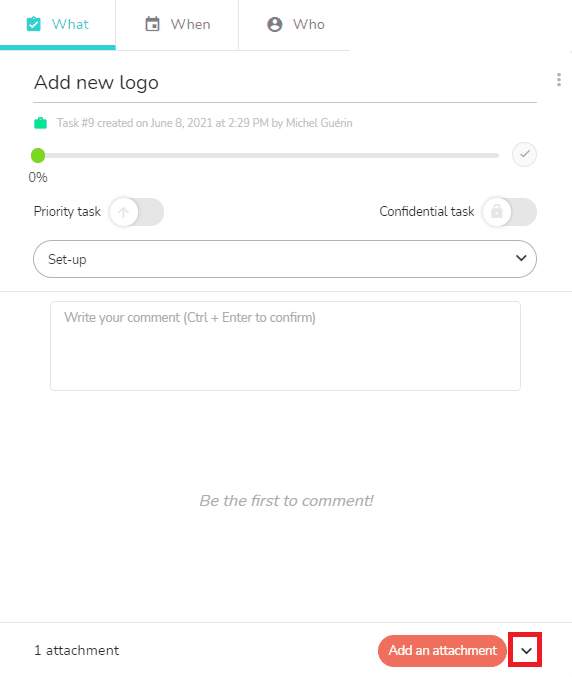
In the attachments menu, click on the title of the attachment:
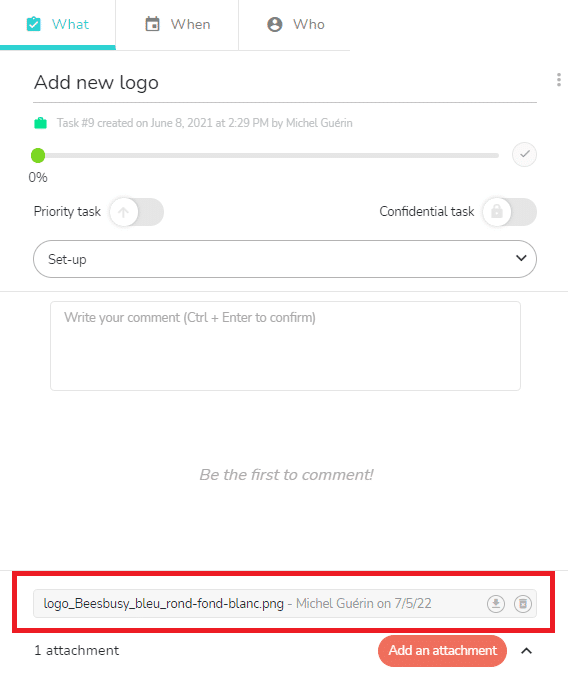
The document preview appears on the screen:
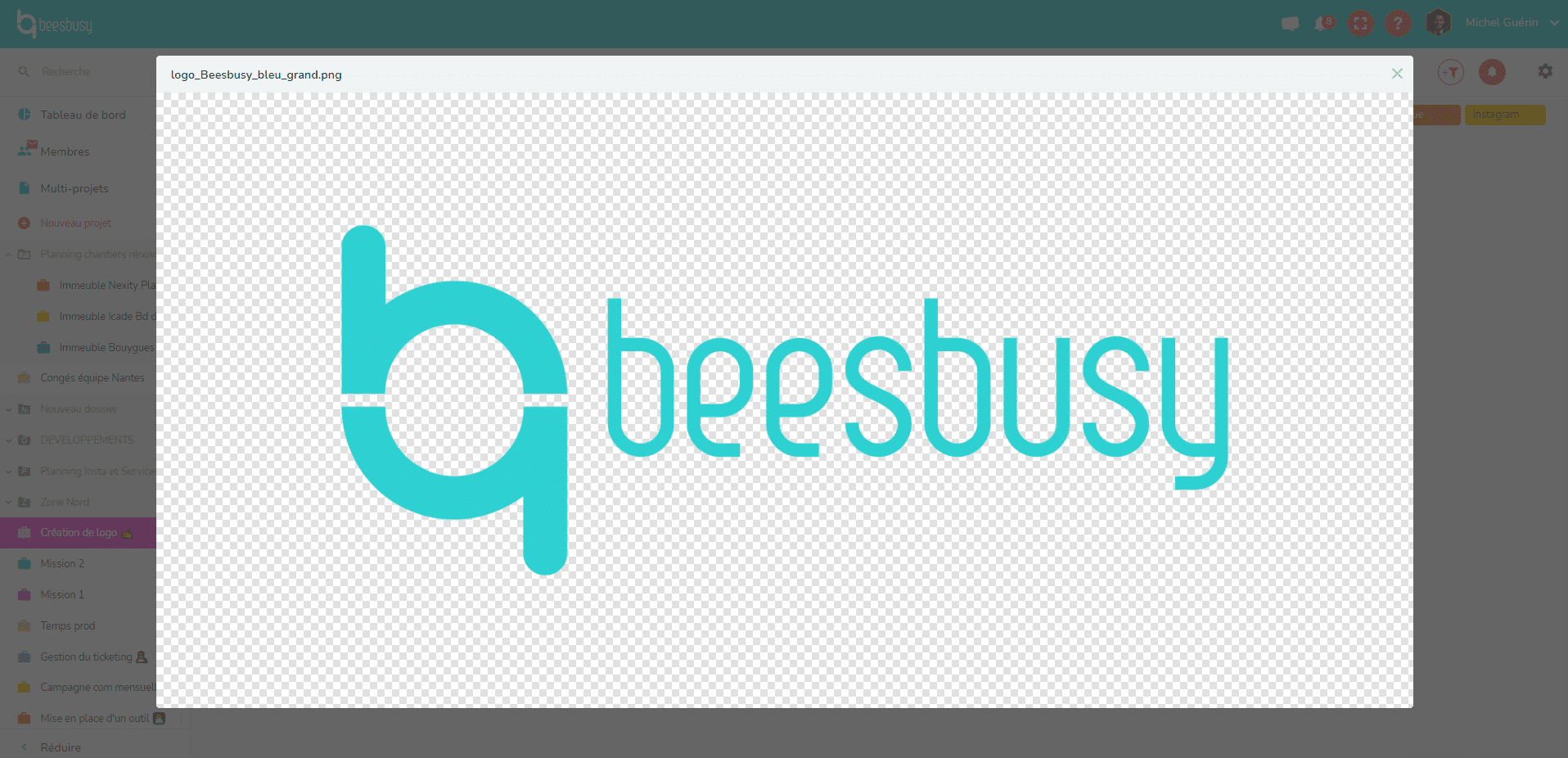
Only certain document formats allow previewing:
- bmp image/bmp
- htm texte/htm
- html texte/html
- jpg image/jpg
- jpeg image/jpeg
- pdf application/pdf
- png image/png
- tiff image/tiff
- txt texte/plain
Select an image to thumbnail on the task
In the What view of the project, you can display an image as a thumbnail on a task:
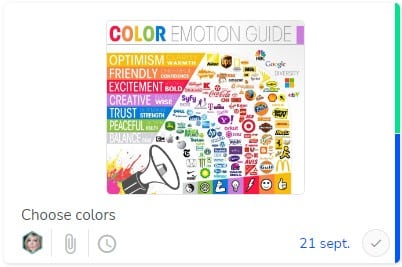
To do this, simply open the task and, in the list of attachments, select the image to display by clicking on the star to the left of its name: