You can add users to your subscription in different ways:
- From the subscription management page.
- Directly from the profile of a member of your list.
Add other users to your subscription from the subscription management page
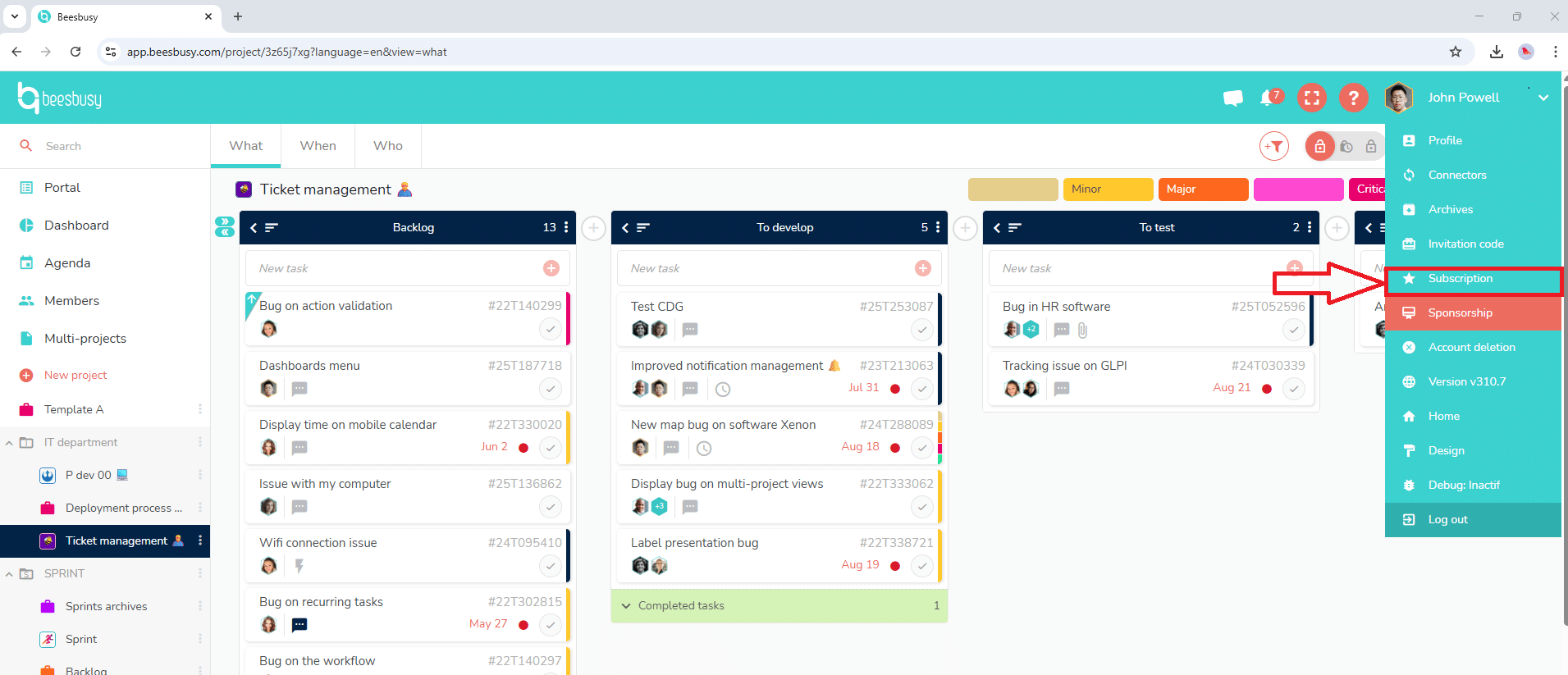
On the Beesbusy administrator account, open the user drop-down menu, then click on “Susbscription”.
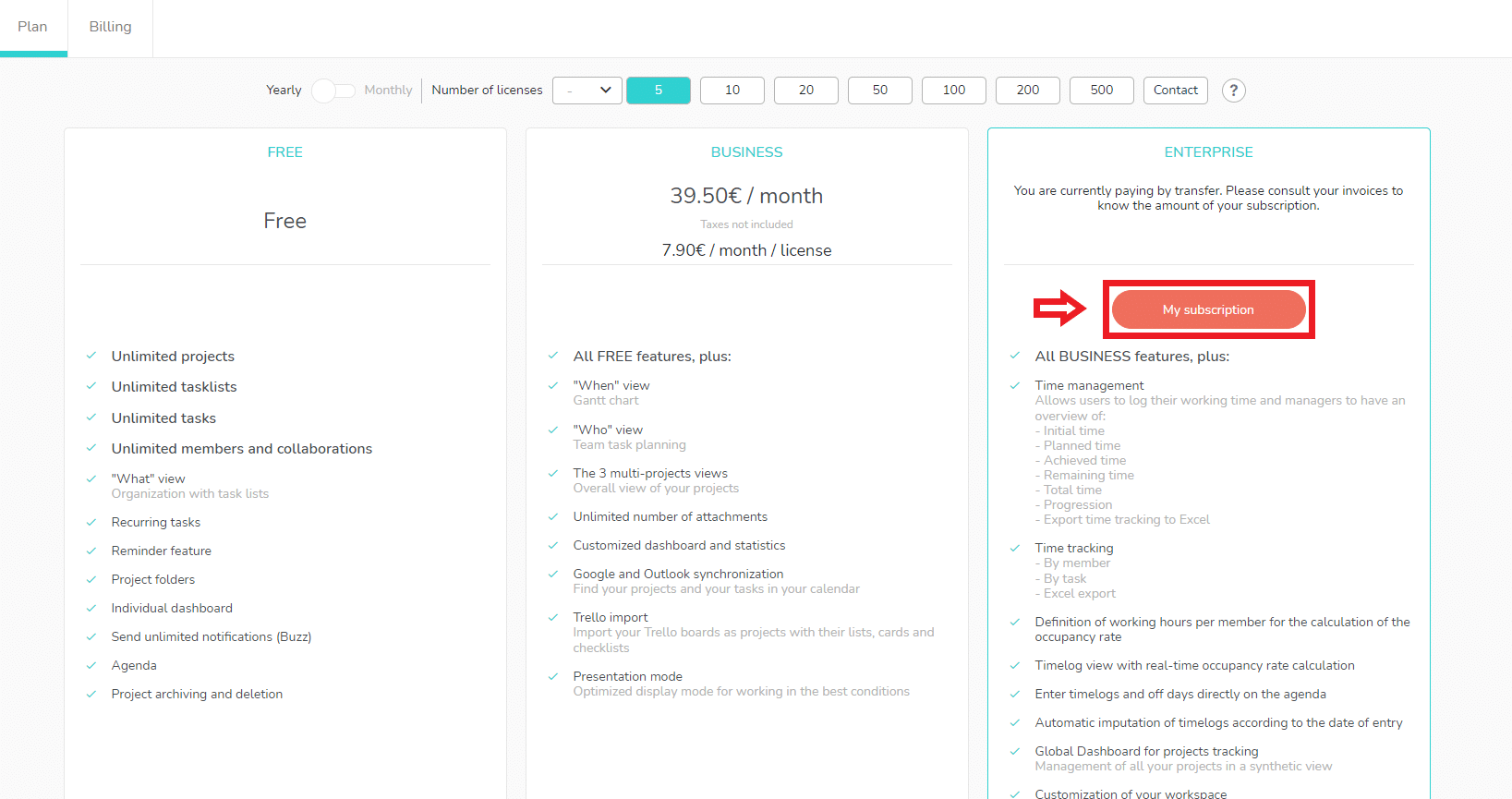
Then go to the “My subscription” page.
Here, in the “Licenses” section, you have 4 options for adding users to your subscription:
- Click on “Add an existing member”: a drop-down menu allows you to choose a member from your members list to give him a license.
- Click on “Download a template” and fill the Excel file whith the email addresses, first / last names of persons you want to add to your subscription. Then, click on “Import file” to upload the data of your Excel file.
- Click on “Create a new member and assign the a license” and manually enter the email addresses, first / last names of persons you want to add to your subscription. They will be added to your members list and to your subscription at the same time.
- Enter an invitation code that you can send to all of your users. They can enter the invitation code in their Profile. You will receive a notification each time a user uses your invitation code and the list of users will be updated within the limit of the number indicated.
Validate your configuration by clicking on “Validate modifications”.
Wichever the way you choose to add members to your subscription, you can check the “Automatic collaboration” box for these members. It will automatically add the members of your subscription to the members list of each member of the subscription.
Add other users to your subscription from their profile
You can also add users to your subscription directly from your list of members.
Members > List > Member Profile: under the member’s information, click “Add to my subscription”. If your subscription allows it, the member will then be added to the list of users benefiting from your subscription.