Select the member you want to replace
In the project, click on the gear icon at the top right of the project window. You access the project settings. Go to the “Collaboration on project” section.
Select the member to be replaced by checking the box on its left.

Choose the member you want to assign to the tasks of the selected member
Click on the “Replace” button located above the list of project members.
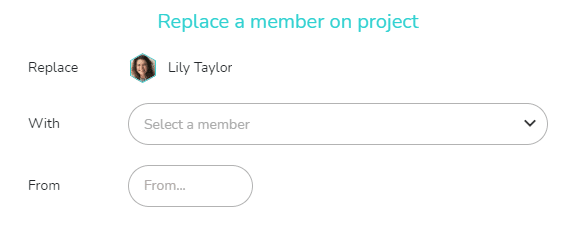
A pop-up window appears, you can then choose:
- The member who will replace the initial member.
- The date of the replacement beginning. All tasks scheduled from this date will be affected by the change of assignment.
Validate the replacement and note, in the Who view of the project, that the change of member has been carried out on all the planned tasks, from the chosen date.