Working hours
The Beesbusy app integrates your working hours into task planning.
If, for example, you have a 4-day working week (Monday, Tuesday, Thursday and Friday) from 9h00 to 18h00. If you schedule a 5-day task on Monday, the task will be scheduled until the following Monday to take into account your off day (ie, Wednesday) and weekends.
Project> “Settings” icon in the top right corner of the window. Go to the “Project working hours” section.
Specify working hours by adjusting the blocks. You can also add new blocks by clicking on an empty space. To remove a block, click on the cross at the top left of it. You can have multiple blocks on a single day.
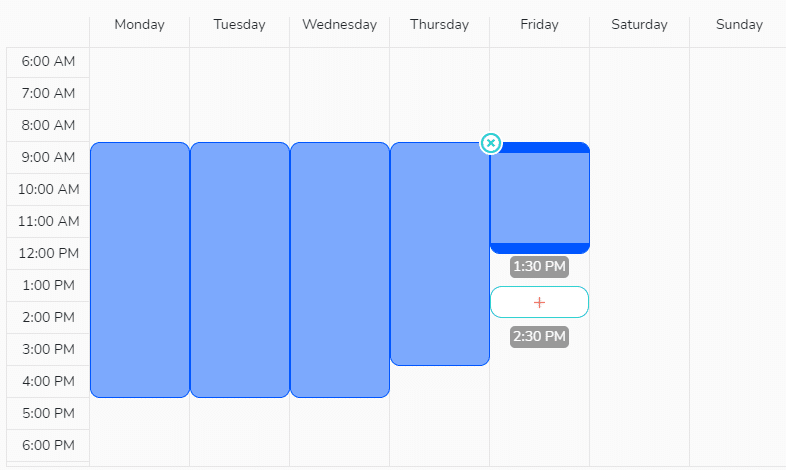
By default, working hours are set from Monday to Friday, from 9h00 to 17h00.
“Off” days
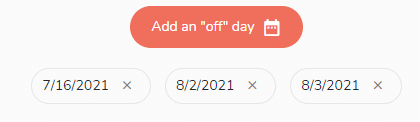
You can create “off” days in order to manage public holidays for instance, without changing your work schedule. To do this, click on the button “Add an ‘off day'” and select the chosen date in the calendar. You can select as many dates as you want. The “off” days will be automatically taken into account when you are scheduling tasks in your project.
Impact on display
When you schedule a task, the hours not included in the working hours are grayed out. You can still schedule a task on these areas
If you have chosen in the project display options to “zoom in on working hours”, then the display of days and hours not worked will be reduced.
These settings are applied to the entire project, for all members assigned to the project.
You can set working hours by default for all your new projects in your profile, “My parameters” tab.