Project folders allow you to group projects. In this article, we present the main feature related to project classification.
Create a project folder
Menu bar on the left > Project name > Click on the 3 small dots to the right of the name. A new menu opens: click on “Categorize”. A new folder is created automatically and you can give it a name. Use drag and drop to rearrange your folders or to move a project from one folder to another.
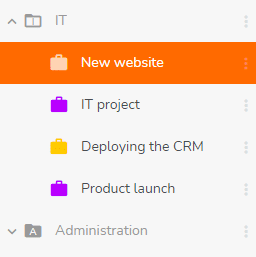
You can open or close a folder by clicking the arrow to the left of the folder name. This allows you to show or hide the projects contained in the folder and save space in the menu bar.
Once a folder is created, you can use it in the filters of the 3 multi-project views.
The folders you create are visible only to yourself. Each user can thus create his own organization without impacting the other members of their team.
Rename a project folder
Menu bar on the left > Project folder name > Click on the 3 small dots to the right of the name. A new menu opens: click on “Rename”. You can change its name directly. Press “Enter” to confirm.
Archive a project folder
Click on the 3 small dots to the right of the name of the folder. A new menu opens: click on “Archive” and then confirm or cancel.
If you decide to archive a folder, the projects included in the folder and for which you are the creator or administrator will also be archived. Thus, the projects included in the file will no longer be taken into account in the calculation of your statistics.
To find out more, see the arcticle dedicated to the archiving of projects: https://www.beesbusy.com/resources/features/project/archiving-and-deleting-projects/
Multi-project view by folder
You can get a multi-project view per folder.
Menu bar on the left > Folder name > Click on the 3 small dots to the right of the name. A new menu opens: click on “Multi-projects”. You get in the 3 multi-project views (Schedule, Gantt and Calendars) a display of the tasks belonging to the projects included in the folder.
Plus, in the multi-projects view, when you filter by project, you can select directly a folder in order to select all the projects included in this folder in one click.