Locking the Gantt
You can lock your project schedule (When view) with a single click.
This feature allows you to prevent modification of the Gantt chart.
Only a member with administrator rights on the project can lock and unlock the Gantt.
How to lock the Gantt
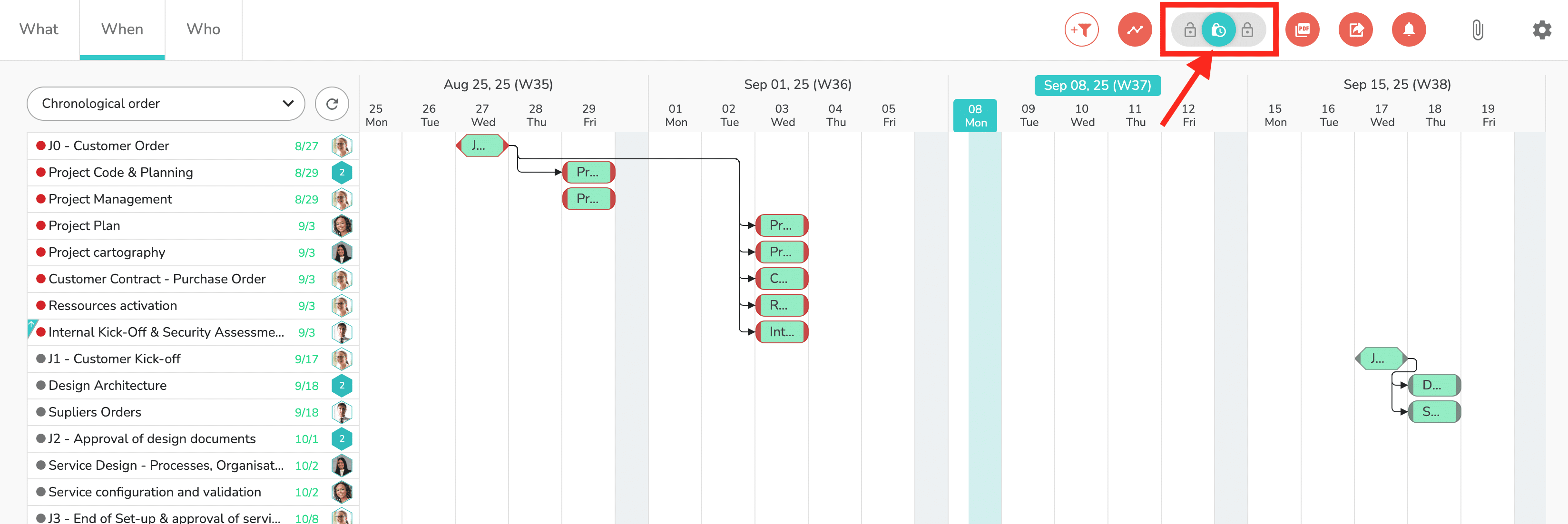
Click the middle padlock in the top right corner of the When view:
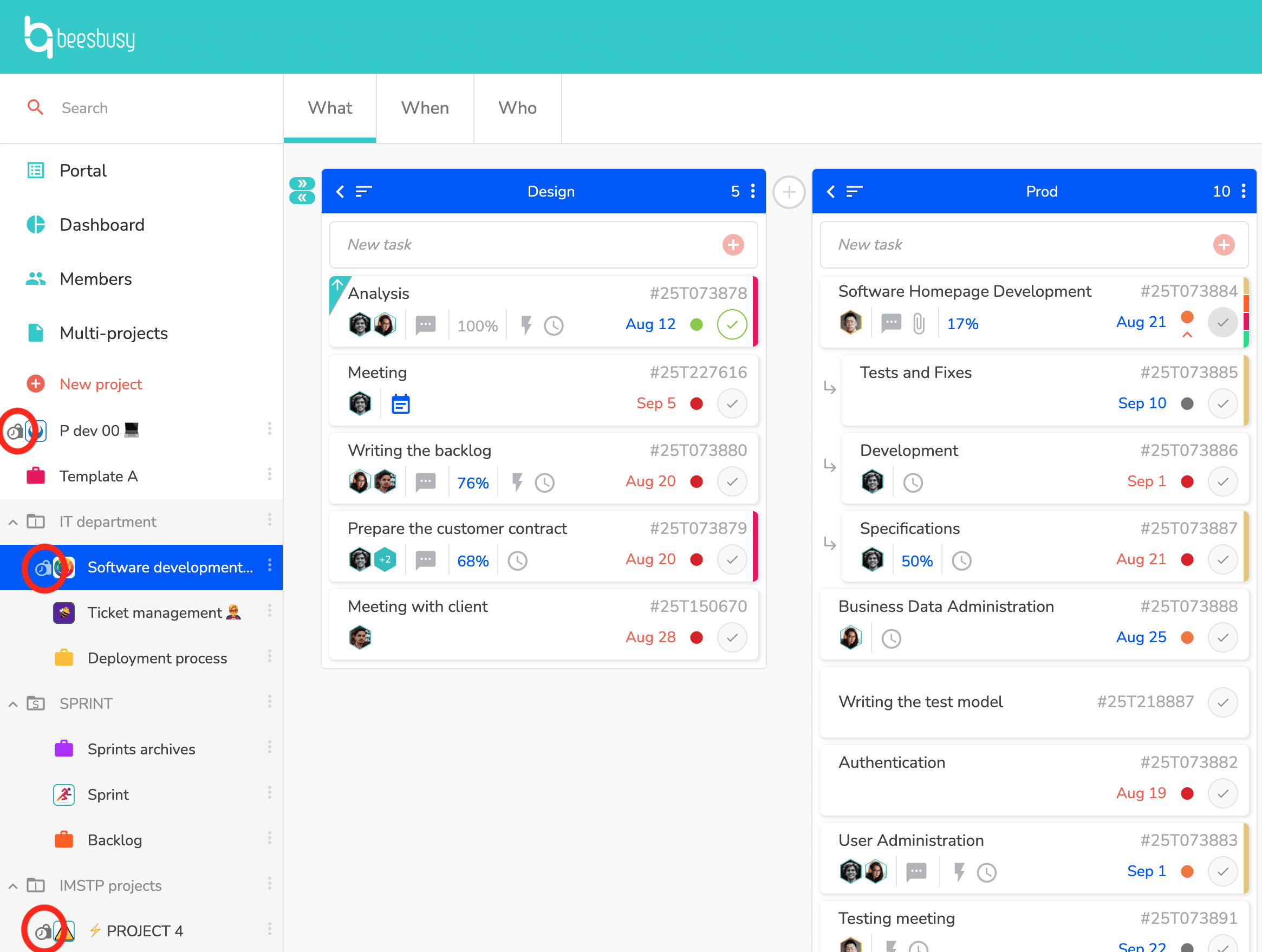
A padlock appears to the left of the relevant project name, so you can easily see which of your projects have their planning locked:
The consequences of locking a planning
Once locked, you can no longer make any changes to a task’s schedule:
– You cannot change the start date, end date or duration of a task.
– You cannot plan times for members.
– You cannot set a link between two tasks.
– You cannot delete a scheduled task.
If you try to make any of these modifications, a message will appear at the bottom of the page to inform you that it is not possible, and to let you know who has locked the planning:

However, you can still perform actions that have no effect on the schedule:
– Create a task.
– Add/delete a label.
– Mark a task as “completed.”
– Write a comment.
– Send a buzz.
– Change the completion percentage of a task.
– Set a task as a priority.
– Set a task as confidential.
– Etc.
How to unlock the Gantt
Only the member who initiated the lock will be able to unlock the Gantt by clicking on the open padlock, to the left of the locking padlocks.