Project icon customization
You can replace the pictogram representing a project by default with an image of your choice, to make it easier to identify your project in the left-hand column and in the multi-project Planning and Gantt views.
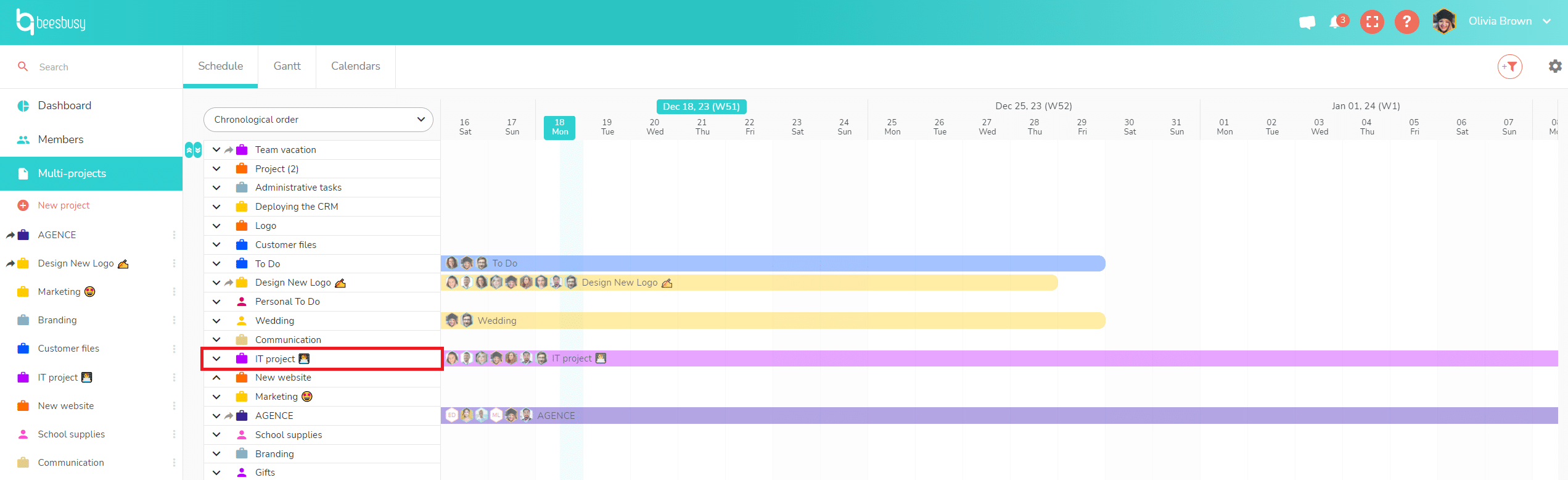
You only have this option if you are the project creator or administrator.
Project settings
To modify your project image, click on the “Project settings” gear icon in the top right-hand corner. In the “Project” section, click on the image location.
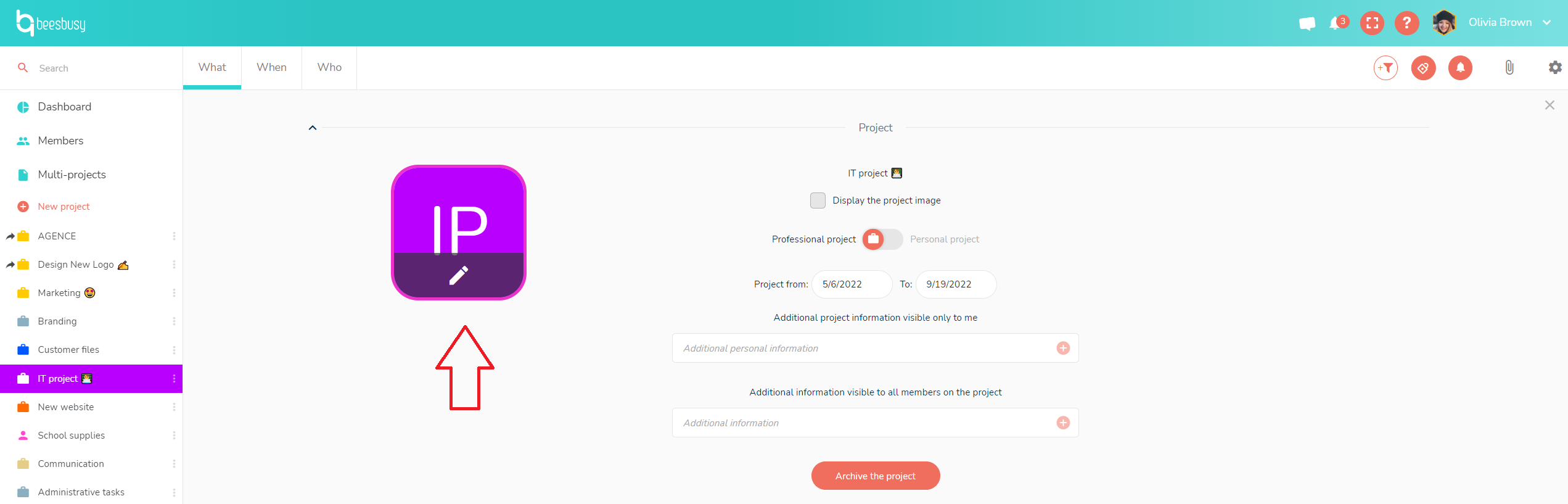
Image selection and display
Click on the pencil to choose an image to replace the default pictogram. Choose the way you prefer to add your image.
- Drag and drop the image.
- Browse your files.
- Copy/paste the image URL.
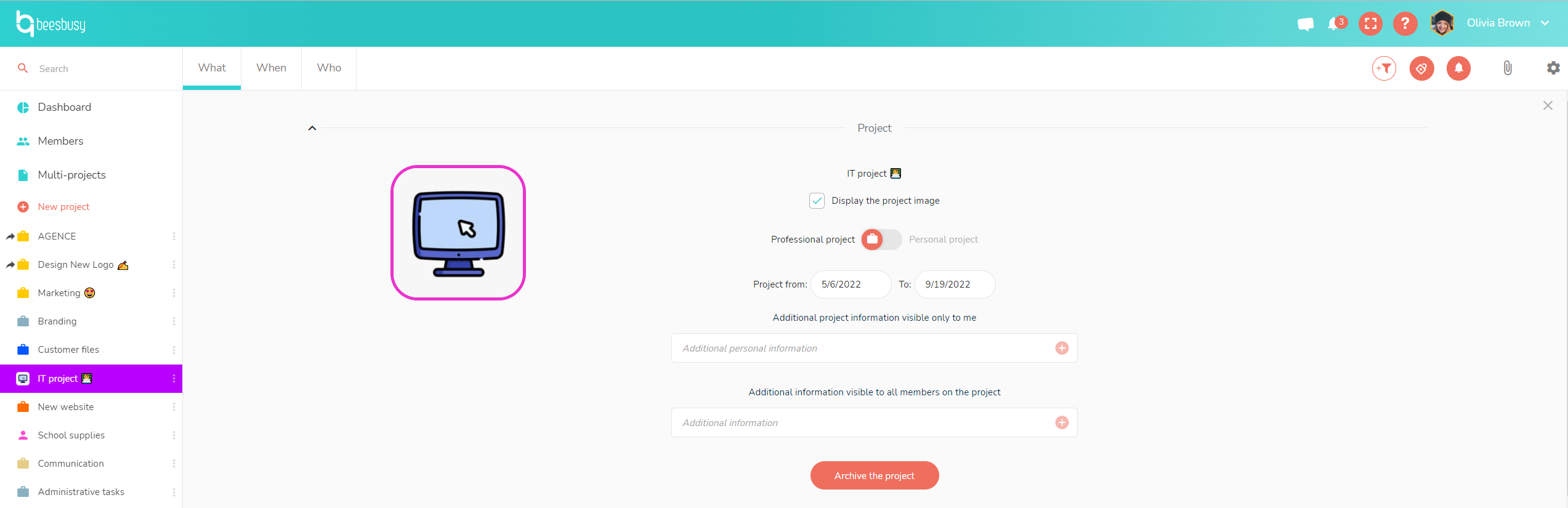
The “Show project image” box is checked by default when an image is selected.
If you uncheck this box, the chosen image is maintained in the project settings, but the default pictogram will be used in the various views and pop-ups.
Good to know: when you share a project with other users, the image you have chosen is displayed by default for all these people when sharing.