You can change the color of a project at any time.
Choose the color of a project
In your project, click on the gear icon in the top right corner of the window (below the user drop-down menu). You will access the project’s settings. Go to the “Project” section and choose a color, then click on “Apply”.
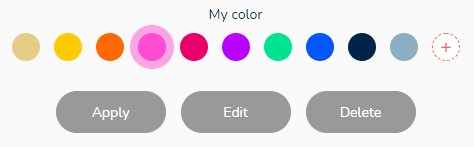
By default, you can choose from 10 colors.
Customize your projects’ colors
With the Enterprise plan, you can add new customizable colors. To do this, click on the “+”: a color selection window appears. You can make your choice by clicking in the palette or by directly typing the color code.
Once the new color is created, it will be added to your color list and available for all your projects.
Select a customized color and choose an action: apply to the project, edit or delete.
Colors of shared projects
When you share a project with other users, the color you have chosen is then displayed by default for these people (custom color or not).
You can change the color of a shared project. This change will be visible for the other members of the project.