A member’s profile
You can view a Beesbusy member’s profile for information about them and your collaboration within the software.
To access it, click on “Members” on the left column. Your member list appears, you can click on a member to view his profile.
A member’s profile is divided into sections, the list of which is set out below.
The General member information and the custom fields are displayed at the top, always visible.
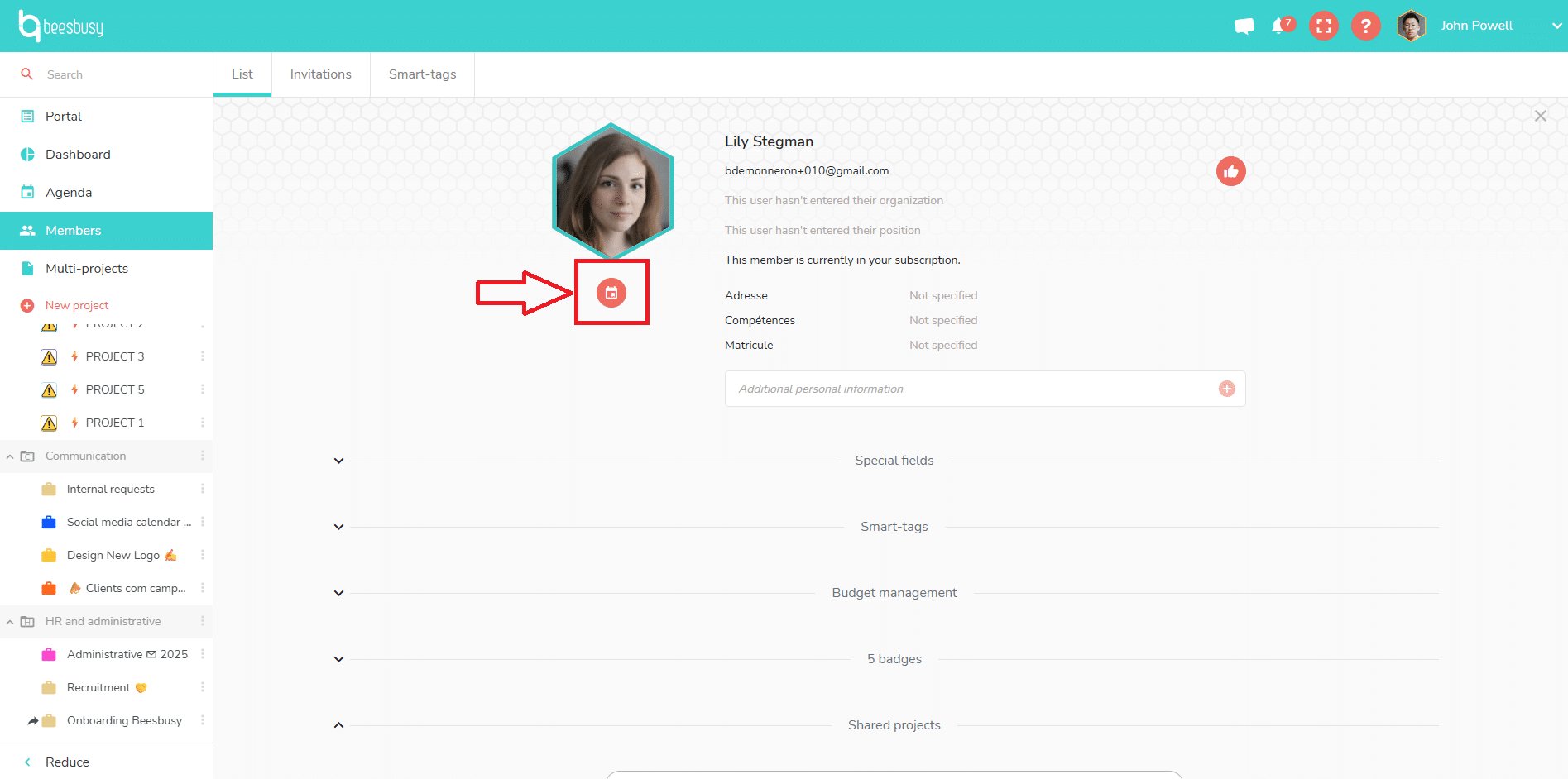
The member’s agenda is accessible thanks to the icon below the member’s profile picture.
Then, click on the name of a section for more details:
- Special fields
- Smart-tags
- Budget management
- Badges
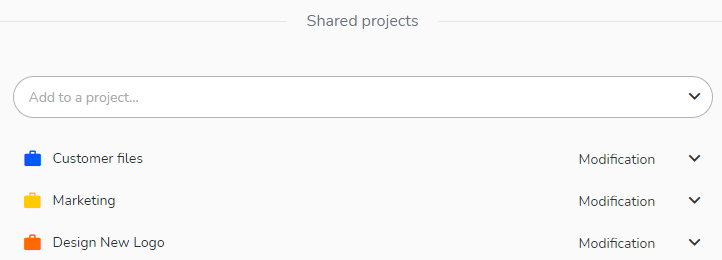
- Shared projects
To delete the member, click at the bottom of the page on “Delete the member”, you will be asked for confirmation.
General member information
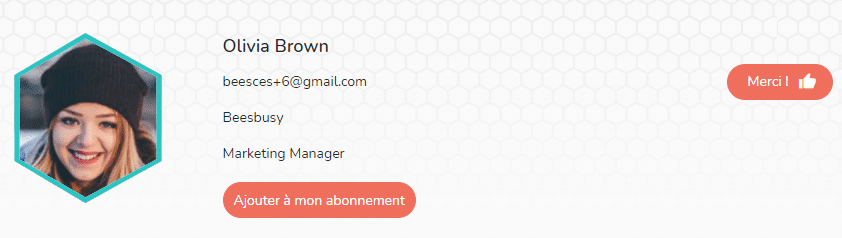
In this section, you will find the member’s avatar, his first name and last name, his email address, his organization and his position. These last two pieces of information are optional.
Custom fields
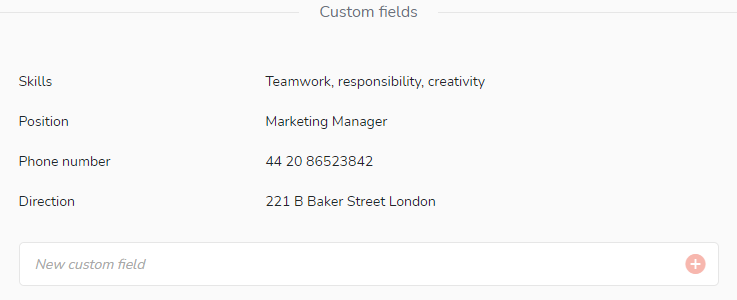
Here, you can add whatever seems relevant to qualify this member, knowing that only you will have access. You can thus indicate skills that seem useful to you, whether it is a supplier, a business unit within a company, etc.
Agenda
You can access the member’s agenda by clicking on the calendar icon under the member’s initials or profile picture:
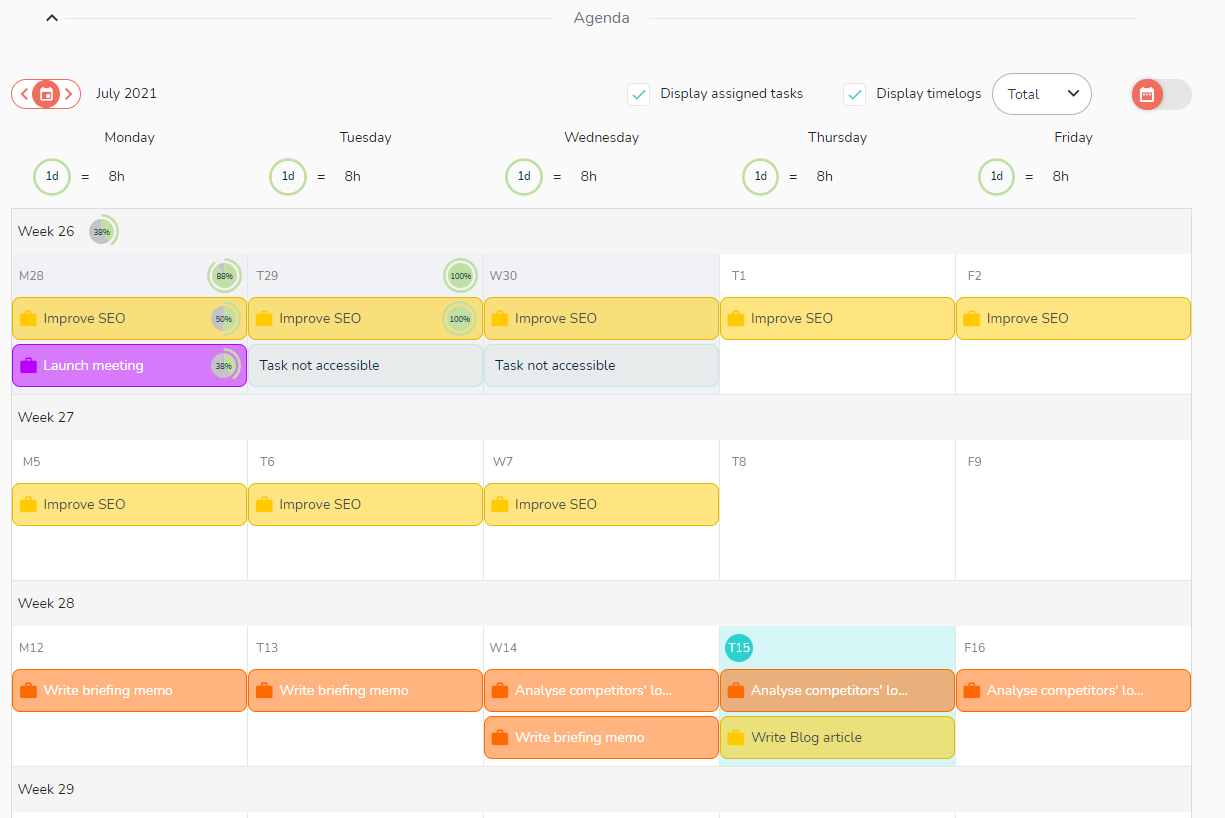
The member’s “Agenda” section shows you the distribution of the member’s tasks in a calendar. Confidential tasks are displayed there under the name “Task not accessible”. Finally, when the occupation times are entered in a task for a day, the percentage of occupied time appears.
Good to know: you cannot change the weekly work hours of another member, unless it is a virtual resource.
Learn more about this:
- How to define your working hours: https://www.beesbusy.com/resources/features/time-management/customize-your-weekly-working-hours/
- How to create a virtual resource: https://www.beesbusy.com/resources/features/members/create-invite-member/
Smart-tags
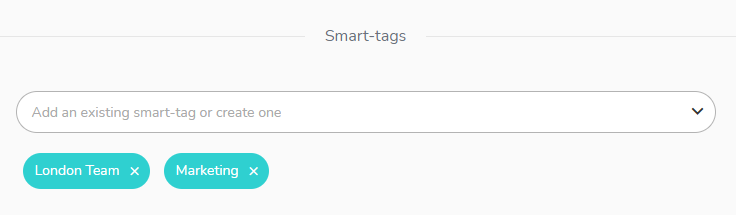
You can attach the member to one or more existing smart-tags, or assign a new smart-tag directly in this section.
Badges
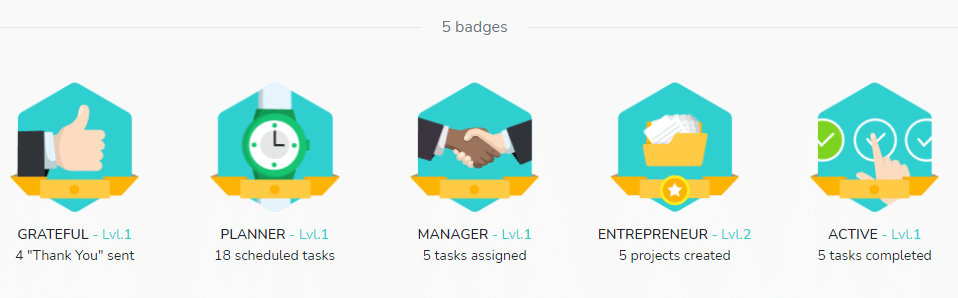
In the badges section, you can see the badges acquired by the member, and therefore his use of the tool.
Shared projects
This section shows you the projects you share with the selected member. You can also add this member to your projects in this section, remove it from your projects, and administer its rights.