How to access the Invitations page
Go to the Members page, then click on the Invitations tab: you can display and manage your invitations to collaborate.
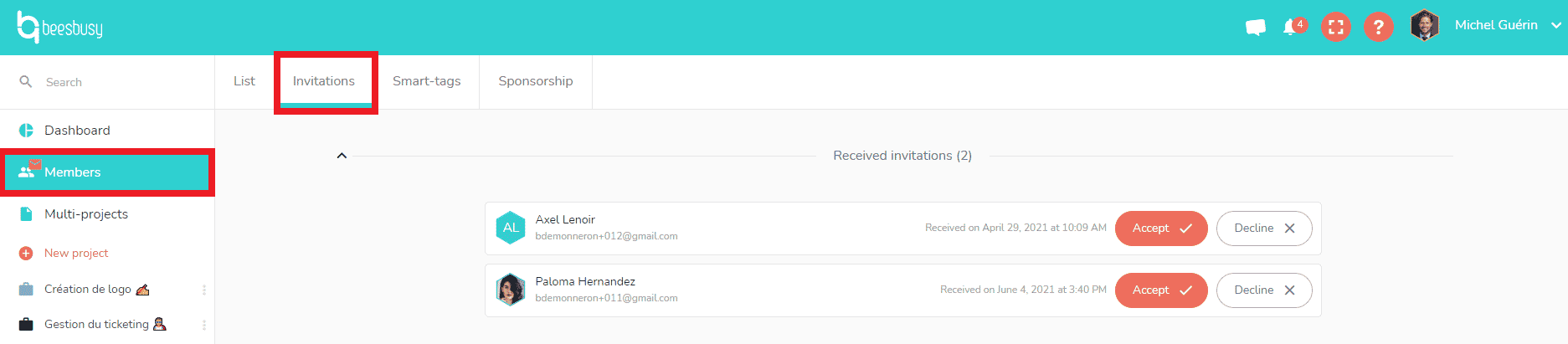
Your invitations are sorted as follows:
- “Received invitations”
- “Sent pending invitations”
- “Rejected sent invitations”
Manage your invitations
Received invitations
You will automatically receive a notification when you receive a new invitation.
The red envelope on the members pictogram indicates that there is an invitation to treat: 
Click on “Members” to access the invitation.
You can as well go to the notification center by clicking on the notification icon  at the top right of your screen.

Click on the notification, then click on « See ». It will take you directly to the “ Received Invitations” section in your Members area.
Sent pending invitations
In this section, you see all the invitations you have sent and still not accepted or declined.
You can send again or cancel an invitation thanks to the buttons at the right of the invitation.
When you send an invitation to collaborate, if the person does not yet have a Beesbusy account, they will be invited to create a new account. If the person already has an account, they can choose to accept or decline the invitation.
Once the invitation is accepted, the person will have access to the projects that you have shared with her.
Rejected sent invitations
In this section, you access the invitations you sent that has been rejected.
You can send again an invitation thanks to the button at the right of the invitation.