Resize the projects column
You can change the width of the column on the left-hand side of the application in two different ways:
- Drag and drop to enlarge or reduce it.
- Click on the “Reduce” button.
Enlarge or reduce the projects column by drag & drop
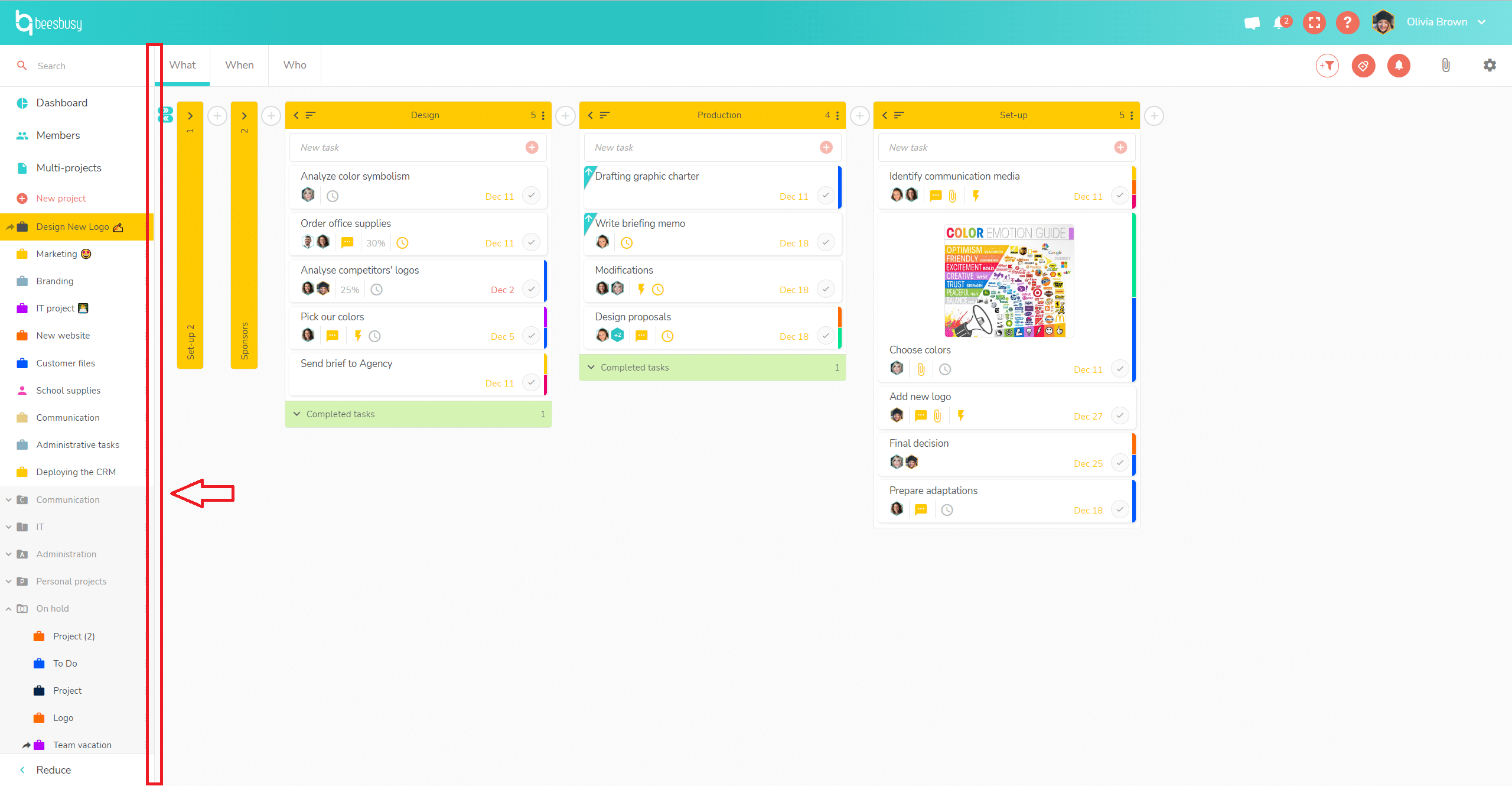
To enlarge the projects column, click on the right-hand line of the column:
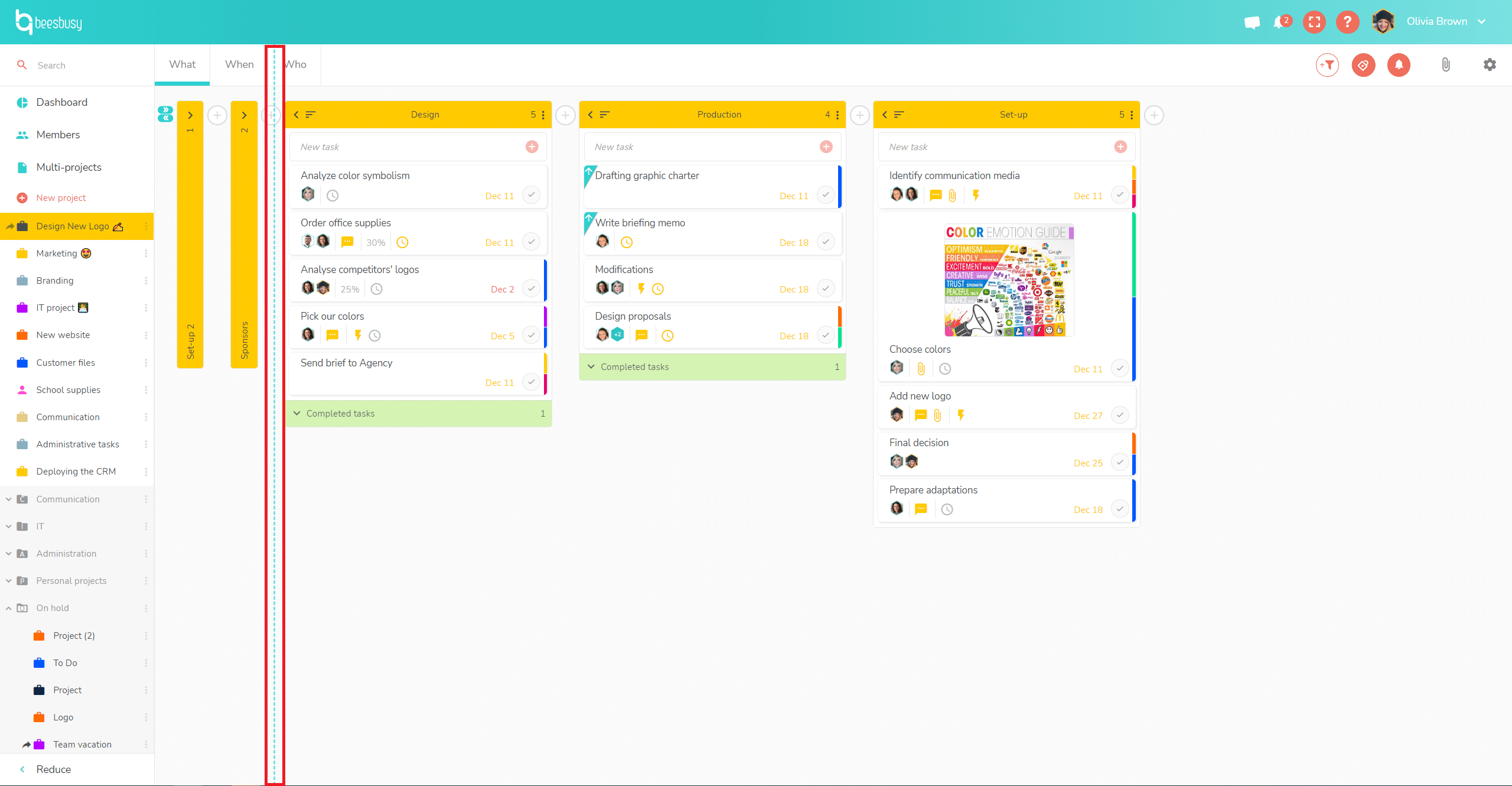
A blue line will then appear.
By holding down the left mouse button, you can now stretch or reduce the projects column.
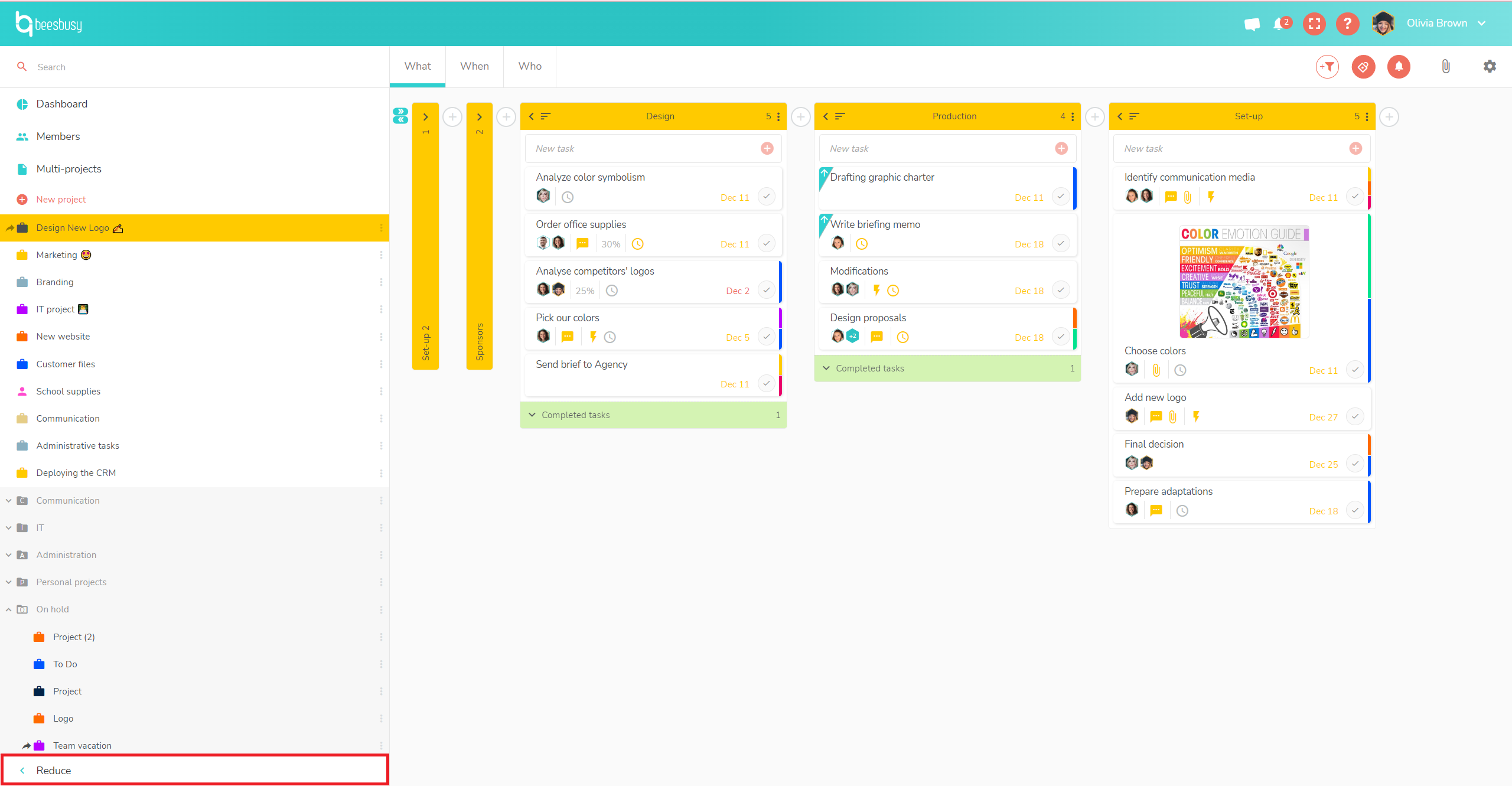
Click on the “Reduce” button
The button at bottom left allows you to considerably reduce the width of your column with 1 click:
Only folder and project icons are displayed:
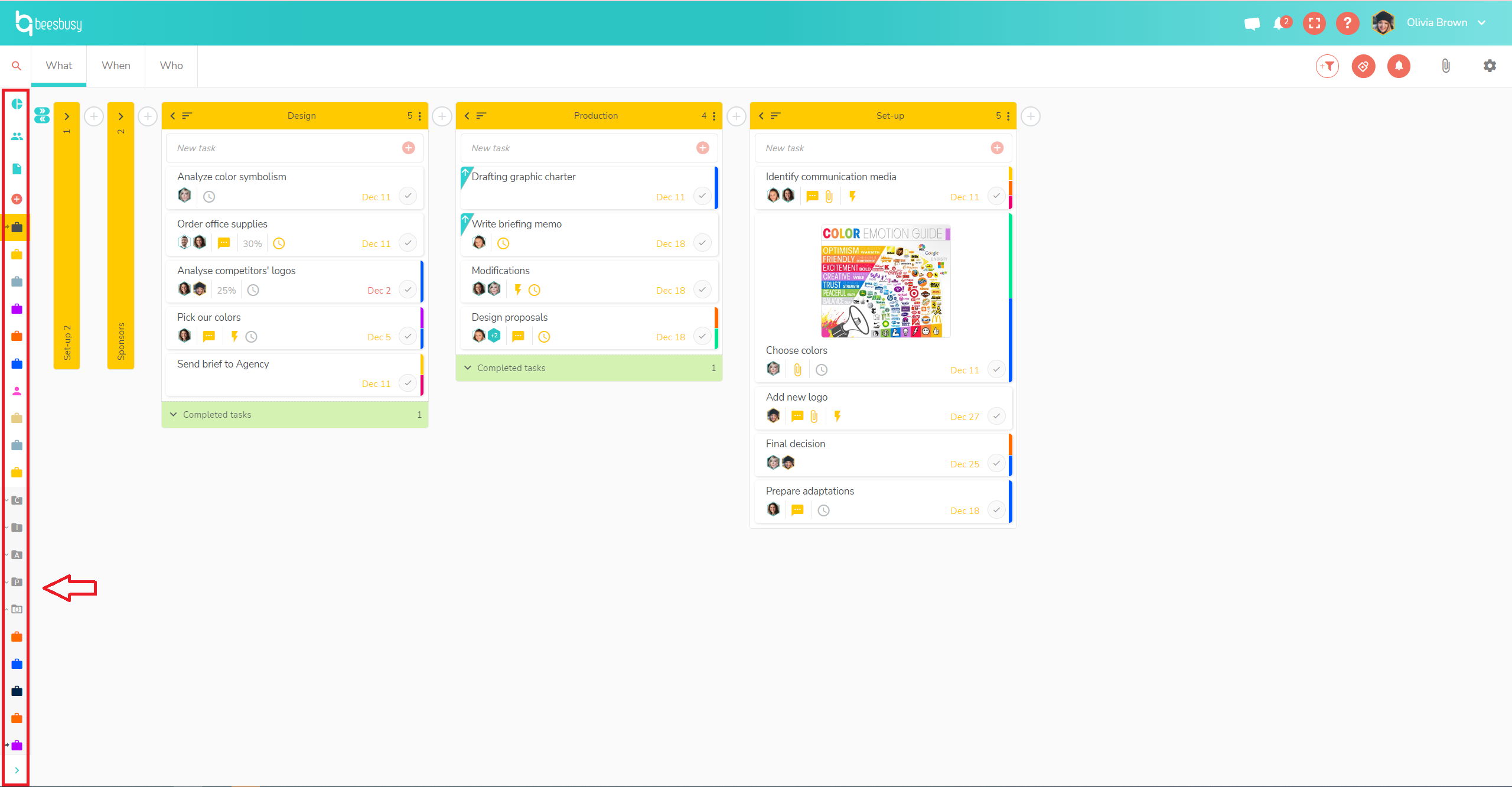
The reverse action is also possible: by clicking on the same button, you can return to the original configuration.