How to access the customized dashboard
Go to the dashboard, customized tab:
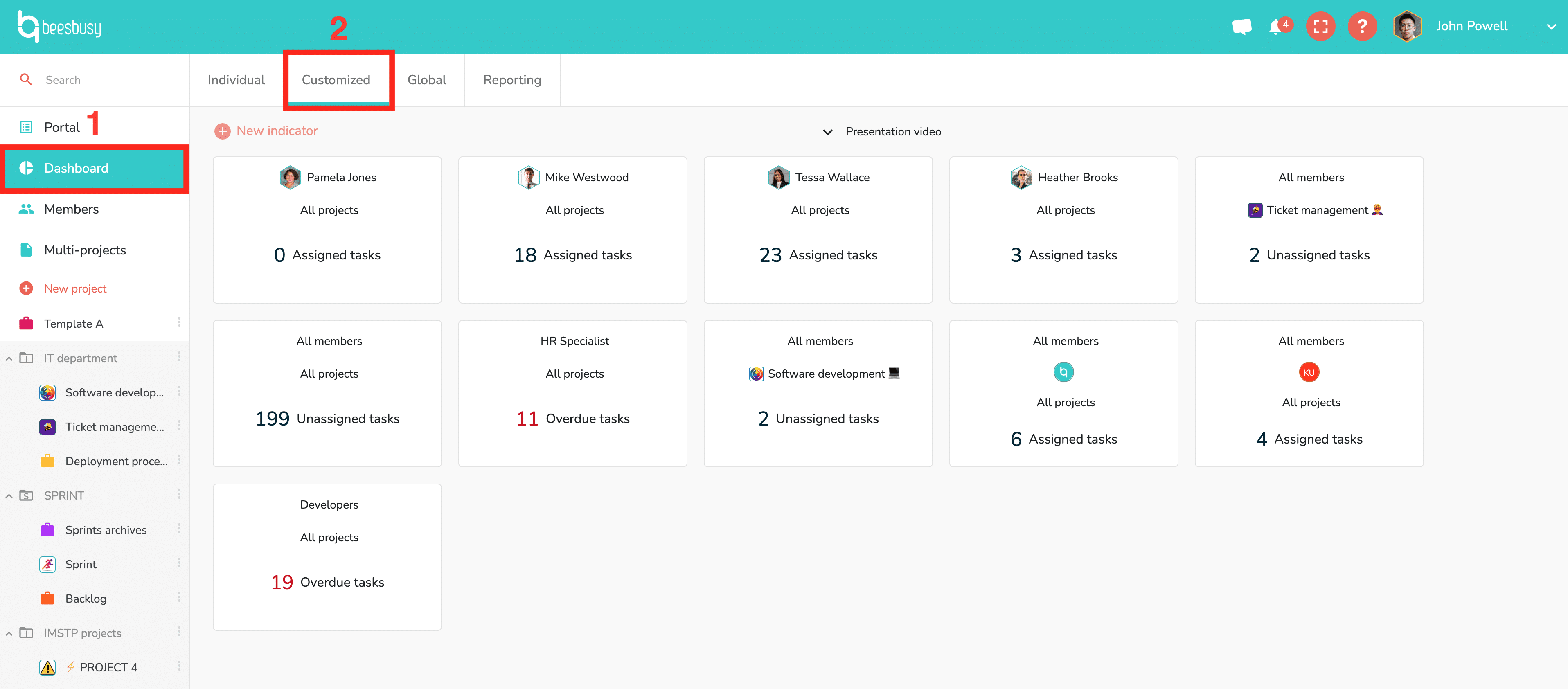
In the Customized Dashboard, you have access to indicators in the form of cards which gather tasks corresponding to specific criteria.
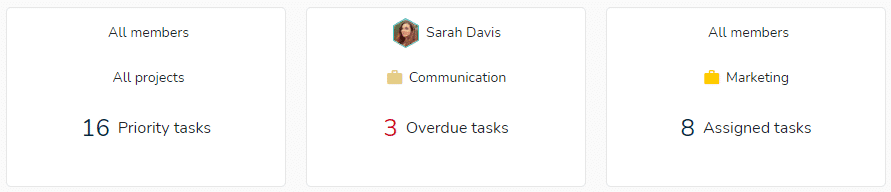
These tasks can be assigned to you or to all members of your member list, or to a smart-tag, but have to belong to projects to which you participate (projects you created or shared with you).
How to create a custom indicator
Click on “New indicator” and choose your criteria:
- Type of tasks. See this article for the meaning of the categories: https://www.beesbusy.com/resources/features/dashboard/individual-dashboard-indicators/
- All projects or name of a specific project.
- All the members of your member list, or a smart-tag, or name of a specific member.
- One or various roles.
To finish creating the custom indicator, click on “Add”.
Click on the indicator card to see the list of compiled tasks. Click on a task to access the task’s details.
How to edit or delete a custom indicator
Click on the indicator you wish to modify or delete. In the details panel, click on the three small dots to the right of the name. Select your choice in the drop-down menu.
If you want to modify the indicator, you can only change these criteria: the projects, the users, the roles. To modify the type of task, you must delete this indicator and create a new one.