You have 2 options to synchronize a project with your agenda :
- From the project settings.
- From the connectors page.
Synchronize from the project settings
Go to the project setting by clicking on the gear icon at the top right of the project window (below the user drop-down menu).
In the “Project” section at the top of the page and click on the “Synchronize with Google Calendar” button or on the “Synchronize with Outlook calendar” button.
If you have already connected your Beesbusy account with an Outlook/Office 365 account or a Google account, the synchronization starts. Otherwise, follow the instructions to sync with your account.

Synchronize from the connectors page
To access the connectors page, click on the user drop-down menu, then choose “Connectors”.
You can then synchronize one or more projects directly in this window.
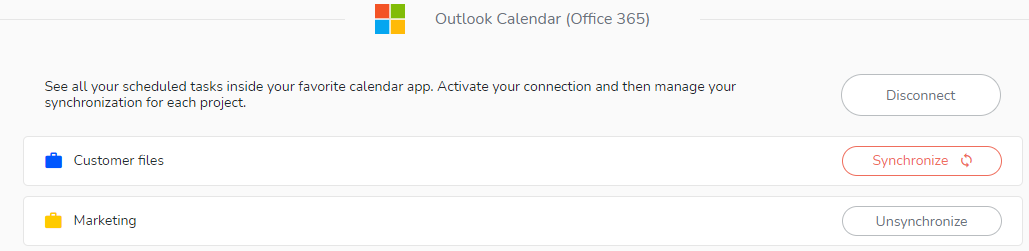
When the selected projects have been synchronized, a new calendar per project will be created in the calendar application of your choice. It will bear the name and color of your project. The tasks of your project will be in the form of events. For more information on each event, click on it to view the task on Beesbusy.
Informations to remember:
- Only scheduled tasks (with a start and/or end date) are imported into your external calendar.
- A new calendar per project is created for each import. It bears the name and color of the project.
- Synchronization with your calendar works one way: all changes made in Beesbusy will immediately be reflected in your external calendar. However, changes made directly from your Google Calendar or Outlook Calendar will not be visible in Beesbusy.